XPost: alt.privacy, comp.sys.mac.apps
Tutorial:
1. You gain privacy (e.g., you use YouTube anonymously)
2. You gain functionality (e.g., you can download & rip YouTube videos)
How to wirelessly mirror Android YouTube sans ads onto Windows/Linux/macOS
with scrcpy/sndcpy/newpipe running on Android (tested on Android/Windows).
All FOSS tools described work independently and together as desired.
a. scrcpy mirror display (video) from Android onto any desktop PC
b. sndcpy cast (forward) audio from Android onto any desktop PC
c. newpipe (optional) a better youtube client that never shows ads
d. webdav (optional) mount Android over Wi-Fi onto Windows as a drive
This is a general purpose tutorial which should work on _any_ platform.
A. You will be able to mirror any Android application to your desktop
B. You will be able to interact fully with that app on your desktop
(using the shared desktop PC mouse, keyboard, monitor & clipboard)
C. You will be able to forward (cast) the sound from Android to the PC
(the controls are independent so that you can reduce echo if needed)
D. All this will be done 100% over Wi-Fi (there are no cables involved)
E. All tools are FOSS tools so there will _never_ be any costs involved
F. And you will _never_ see ads ever (even in YouTube) with my tutorials.
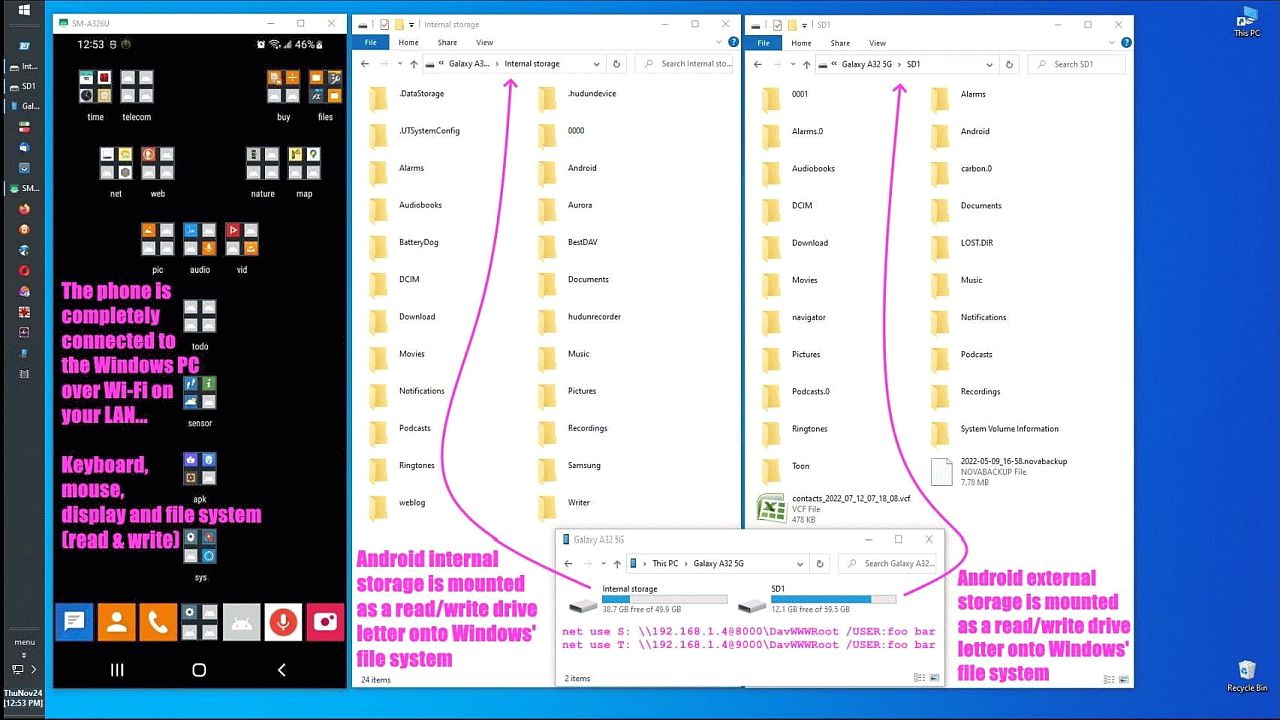
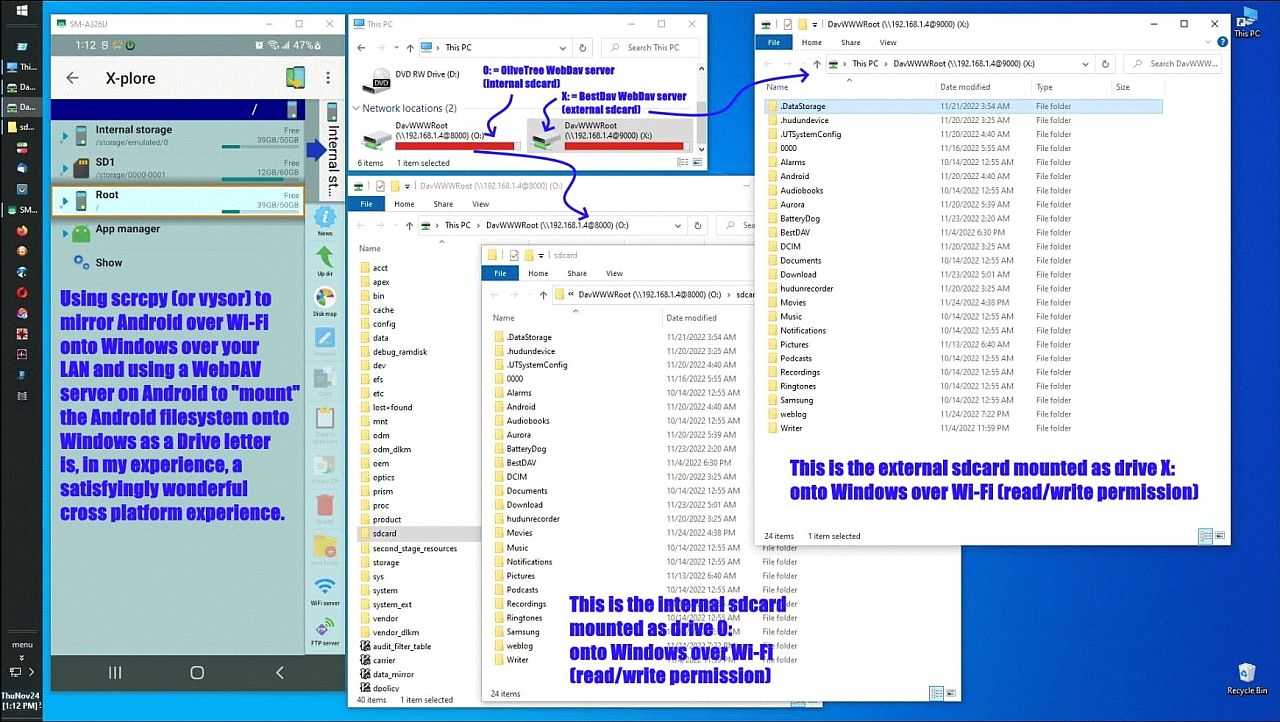
Here are some representative screenshots I made to show how it worked.
<
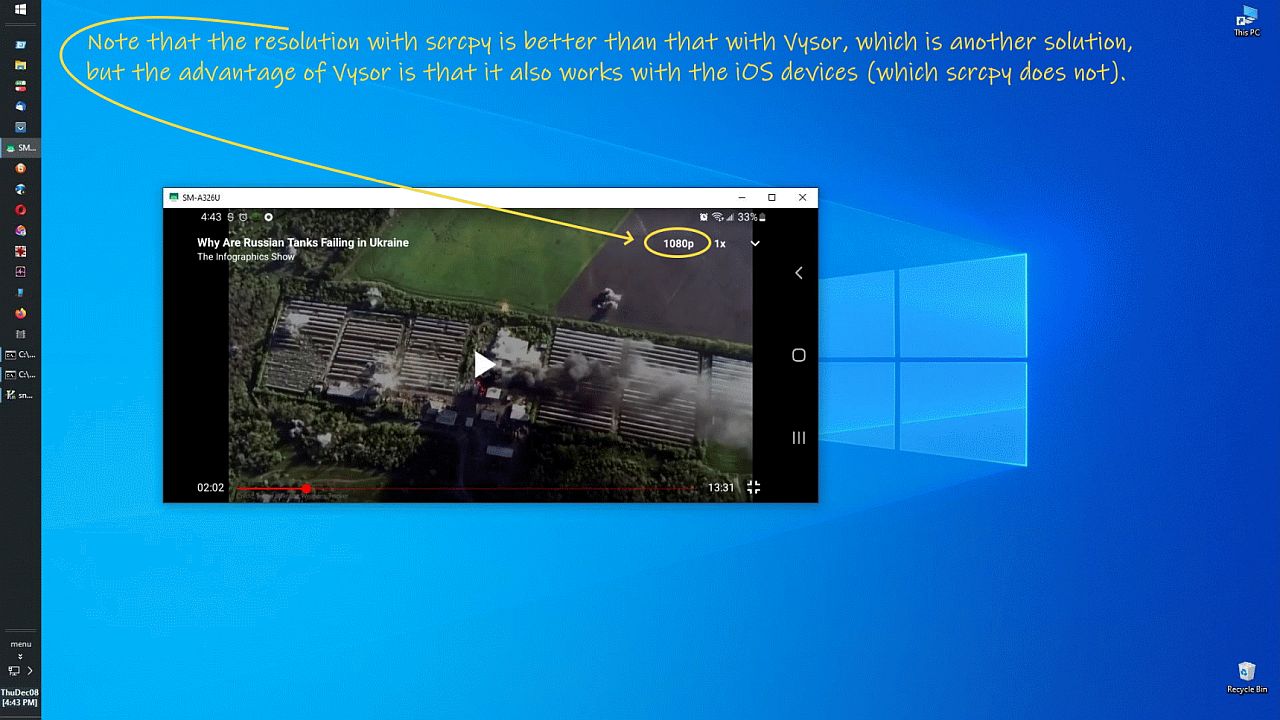
https://i.postimg.cc/G2KhqJ38/sndcpy01.jpg> Mirror both video & audio
<
https://i.postimg.cc/jdXm2ggJ/sndcpy02.jpg> Even mirror ad-free YouTube
<
https://i.postimg.cc/90PPxkRP/sndcpy03.jpg> Resolution is same as devices
<
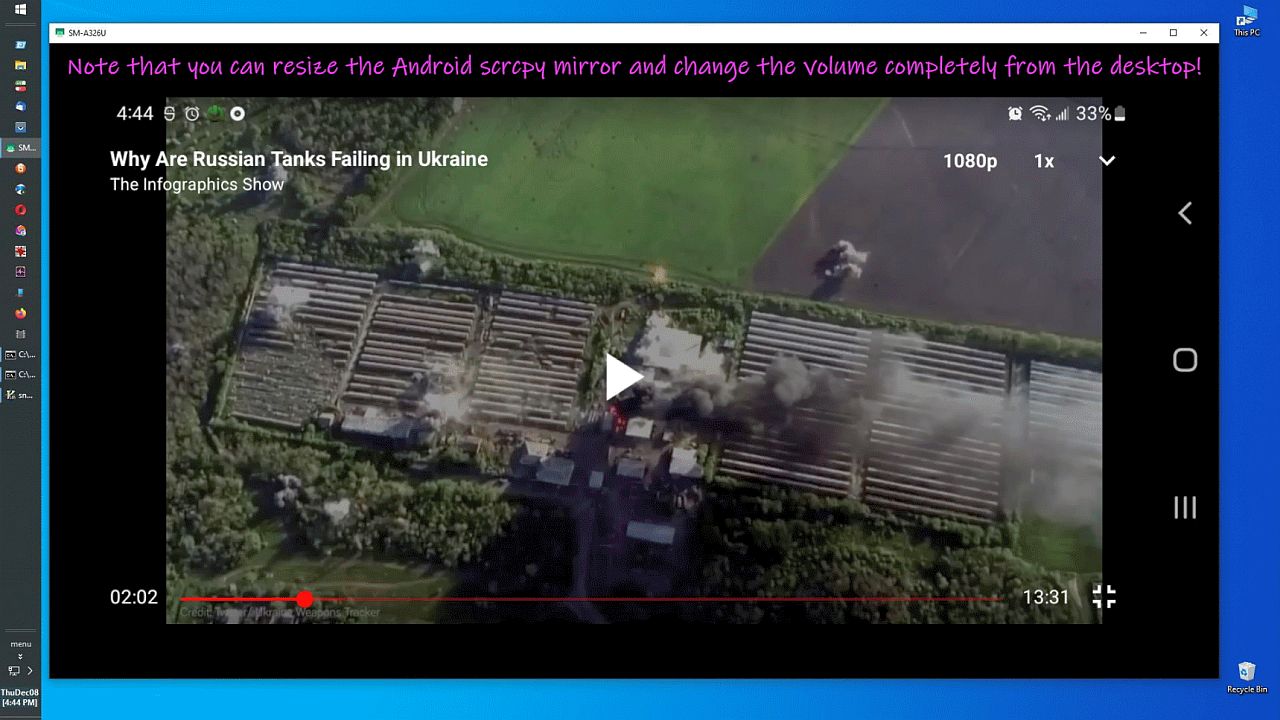
https://i.postimg.cc/qgfYKWf8/sndcpy04.jpg> Resizing to full monitor size
<
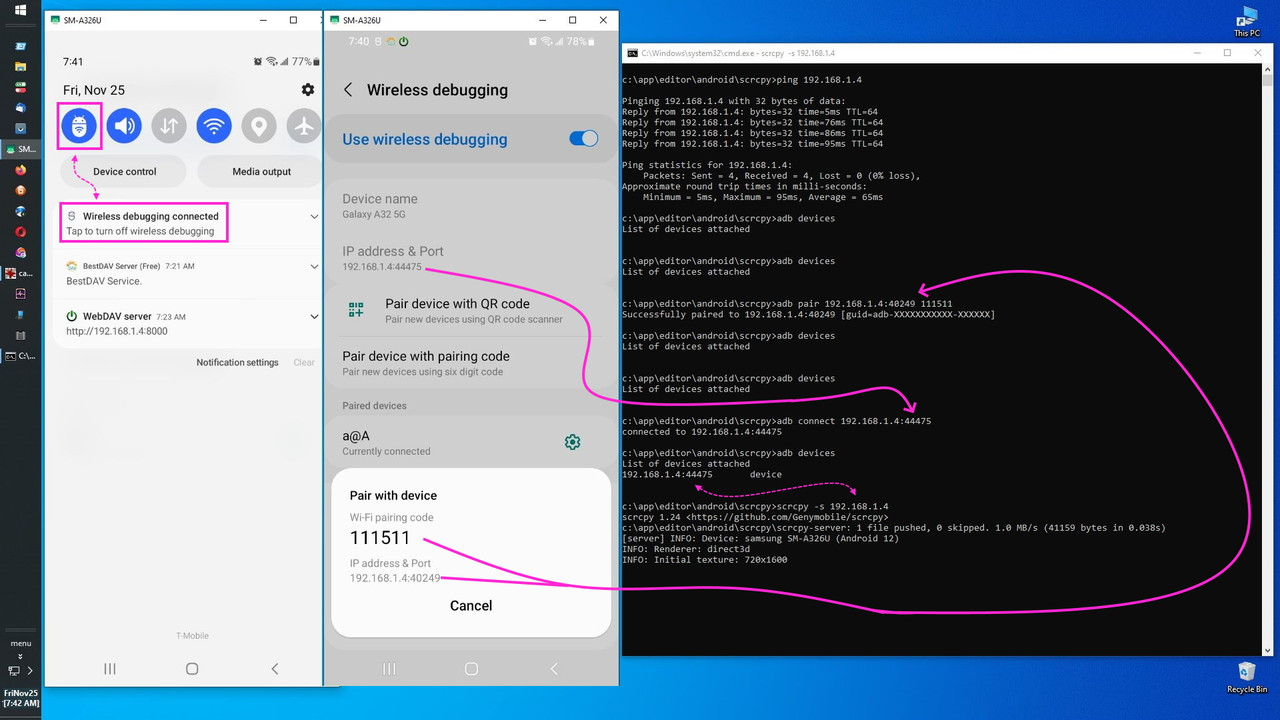
https://i.postimg.cc/JhjpnRgh/webdav14.jpg> Mirroring using IP address
Not in this tutorial is how to seamlessly mount the entire Android file
system onto the desktop as a drive letter (which is in other tutorials).
<
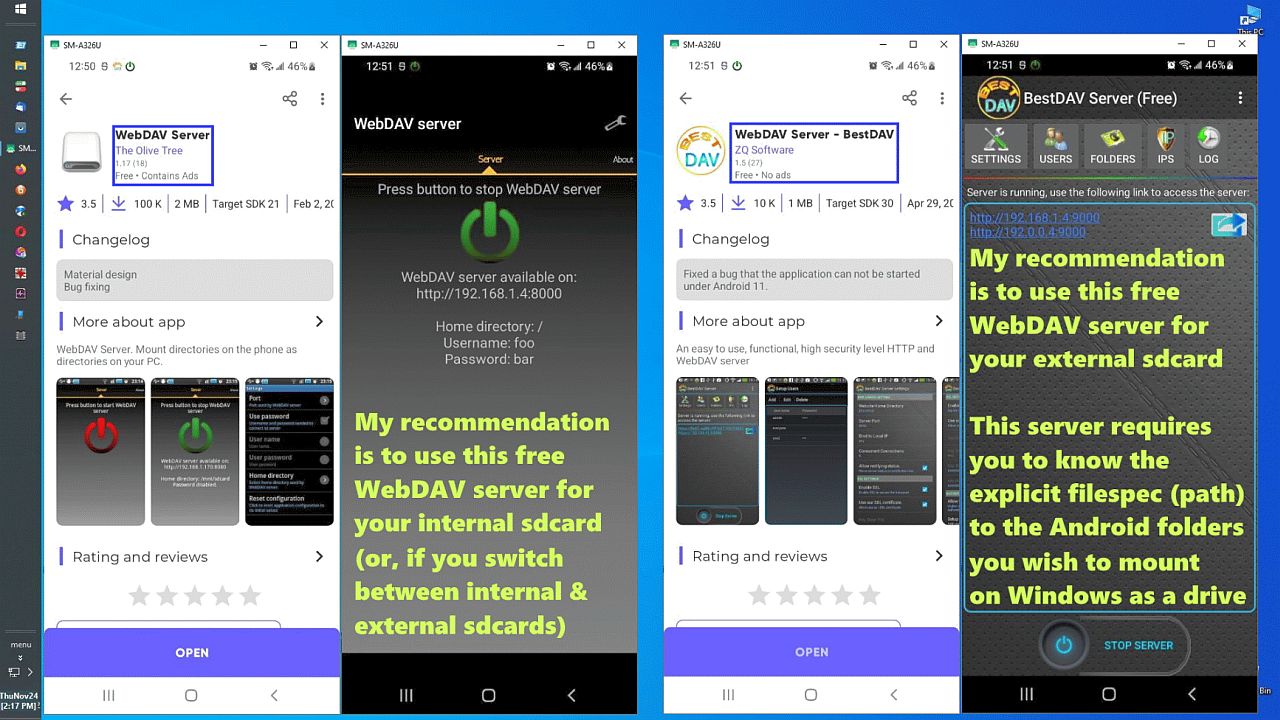
https://i.postimg.cc/wM4Z45pN/webdav10.jpg> Free Android WebDAV servers
<
https://i.postimg.cc/BQyRxCN9/webdav11.jpg> Mount sdcards read & write
<
https://i.postimg.cc/yYWwgGmy/webdav12.jpg> As Windows drive letters
<
https://i.postimg.cc/QtbR1GY0/webdav13.jpg> Over Wi-Fi on your home LAN
<
https://i.postimg.cc/gcKXV6F7/webdav16.jpg> A third free WebDAV server
As always, this tutorial is written and documented out of the kindness of
my heart as free general purpose cross platform functionality is always
what I strive for, and particularly, in this example, where I strive for
the privacy and utility of a completely ad free FOSS YouTube client cast.
It's general purpose because everyone can do this right now, on any PC.
Note: The _example_ I documented is just one use model, but it's an
important use model since YouTube FOSS clients do not exist on the PC.
That means all Android apps should work the same - however - and this is important - there is no other app out there that I know of which performs
this FOSS YouTube functionality on the desktop (and no, a web browser is
not even close to the same functionality by any means no matter how
desperate the iKooks claim that a web browser can do everything. It can't.)
As always, since the whole intent is to kind heartedly teach others and to
then learn back from what they know that I don't yet know, if you know more than I do about this topic, please do add on-topic technical value.
Please ask honest questions if you have issues getting it to work on your system (as long as that system is not iOS, which is crippled in many ways).
Here are the minimum tools required to cast the screen & audio to the PC.
Install scrcpy & sndcpy on Windows/Linux as per the instructions at Github.
sndcpy (comes with adb): <
https://github.com/Genymobile/scrcpy>
scrcpy (comes with adb): <
https://github.com/rom1v/sndcpy>
Here is a tutorial for using scrcpy/sndcpy so my instructions below
will simply be cursory copy & paste commands that have worked for me.
<
https://github.com/rom1v/sndcpy/issues/74>
*Tutorial to use scrcpy and sndcpy at same time*
There is also a tutorial for mirroring sound/audio onto macOS:
*Share your Android screen and audio on macOS*
<
https://dev.to/equiman/share-your-android-screen-and-audio-on-macos-1p64>
Here's what I did to mirror NewPipe audio/video youtube to Windows.
(Again, YouTube is just one of many possible examples; YouTube sans ads was chosen because that functionality does NOT exist on any desktop platform!)
Install scrcpy.apk on Android & put the app icon in a convenient location.
copy scrcpy.apk Z:\scrcpy.apk
Note in that copy case Android was mounted over Wi-Fi onto the desktop
as a drive letter using free WebDAV servers which has been explained
in other tutorials so it's assumed you know how to copy APKs to Android.
Install any FOSS Android YouTube client to watch YouTube sans
advertisements.
<
https://newpipe.net/>
Now you are ready to mirror Newpipe audio & video over to your desktop PC.
You can use USB cable & then switch to Wi-Fi using this rather old method:
a. Turn on Android USB debugging
b. Connect Android to the desktop temporarily over USB
c. C:\> adb devices
List of devices attached
adb-SERIAL._adb-tls-connect._tcp. device
C:\> adb tcpip 5555
d. Manually disconnect the USB cable connection
e. adb connect 192.168.1.4:5555
But as of about Android 10, you can directly connect adb over a Wi-Fi
network.
a. Turn on Android USB debugging & Wireless debugging
b. Connect Android to the Wi-Fi network access point
C:\> ping 192.168.1.4
c. C:\> adb devices
List of devices attached
adb-SERIAL._adb-tls-connect._tcp. device
C:\> adb -s adb-SERIAL._adb-tls-connect._tcp.
e. adb connect 192.168.1.4:43210 (this port is shown on Android)
Once you're connected to adb, mirror the screen,mouse,keyboard & clipboard.
scrcpy -s adb-SERIAL._adb-tls-connect._tcp.
Once you've mirrored the Android onto the desktop, share the audio.
scrcpy adb-SERIAL._adb-tls-connect._tcp.
Here are some screenshots showing the sharing of YouTube audio/video
with Android in your pocket or in another room in the house,
without ever seeing an ad using any available FOSS YouTube client.
<
https://i.postimg.cc/G2KhqJ38/sndcpy01.jpg> Mirror both video & audio
<
https://i.postimg.cc/jdXm2ggJ/sndcpy02.jpg> Even mirror ad-free YouTube
<
https://i.postimg.cc/90PPxkRP/sndcpy03.jpg> Resolution is same as devices
<
https://i.postimg.cc/qgfYKWf8/sndcpy04.jpg> Resizing to full monitor size
Note: If the Android phone is in the same room (usually it's in my pocket),
you may want to turn the volume down on the phone to prevent echoes.
Note: The instructions say you need VLC but I didn't use it but I do
have VLC on both Android & Windows but I don't see where it applies.
Note: Obviously your IP address will differ as will your serial number.
As always, let me know if you enjoy these tutorials, and please add value.
If you're on iOS, please cry silently given how crippled iOS happens to be. (Yes, I know the iKooks always fabricate non-existent functionality,
which they incessantly do because iKooks can't stand how crippled iOS is.)
--
Posted out of the goodness of my heart to disseminate useful information
which, in this case, is to show others how to mirror Android audio & video.
--- SoupGate-Win32 v1.05
* Origin: fsxNet Usenet Gateway (21:1/5)