On 9/1/2022 6:34 PM, wAYNE wrote:
On 9/1/22 17:37, wAYNE wrote:
On 9/1/22 10:49, Paul wrote:
On 9/1/2022 9:46 AM, wAYNE wrote:
On 8/31/22 16:34, Paul wrote:
On 8/31/2022 3:32 PM, wAYNE wrote:
On 8/31/22 14:50, Marco Moock wrote:
18.04 is quite old and partially out of support, maybe upgrade to >>>>>>> 22.04 and then try again.
Interesting, was going to try going with 20 first but says not enough space on /. Not sure what's taking that up. Does / signify places like the desktop too as I have a lot of stuff on the desktop? I tried the apt clean as suggested but no
difference and nothing in the trash.
I use "df" command for a quick review. "df" is Disk Free.
The "gnome-disks", for mounted volumes, graphically shows how
full mounted partitions are, when you click on the partition
in the GUI.
You can expand the partition... if there is room to the right.
You can use gparted, with a LiveDVD as the booted OS, to
do some disk editing.
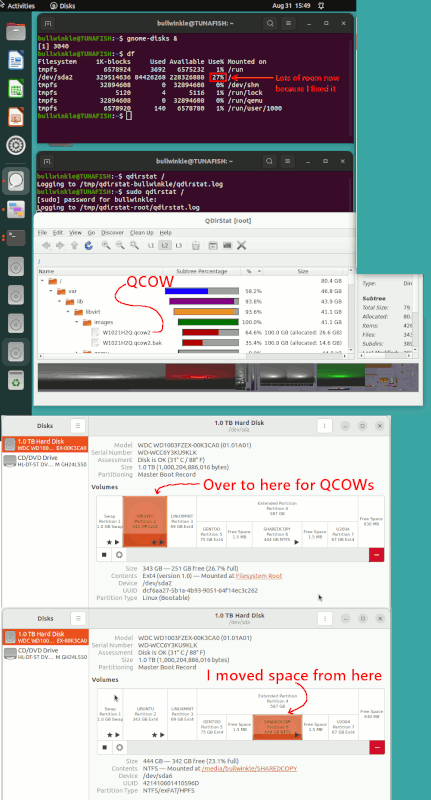
A typical giant waste of space, is if you are a QEMU
user and wave around one or two QCOWs for fun :-) Since
the QCOW files are hidden in a root-owned location, you
have to run your disk-listing programs as root.
Analysis of disk contents (the slash partition) can
be done with one of the dirstat programs, like kdirstat
or qdirstat. sudo qdirstat / is an example of a command
for this job.
While this picture is not an entire recipe, I can tell
you that when I used gparted to resize and move around
the materials for this, it took the whole damned day
to do it :-) The partition started at maybe 35GB, but
ended up a lot larger.
[Picture]
https://i.postimg.cc/SKZ39NRp/make-space-with-gparted.gif
Paul
This is a dual boot system. Win 10 or Ubuntu selected at start up. I did reboot with the Live CD and took a look at the partitions with gparted. I believe the partition in question is a 19 GB one with 17 GB being used, which is why I can't
upgrade because there isn't enough space. The one right next to it is the home partition. I tried shrinking that, allowing free space, but then I was unable to resize the 19 GB partition any larger.
Initially, I had a lot of kernals from prior updates and went in and deleted those except one prior kernal just in case things go wrong with the current kernal. However, while in the past this always freed up enough space, it didn't work this time.
Seems like a lot of extra work just trying to get these Appimages to work again! Is there no other solution? I tried downloading some Appimage updates and got the same error message when clicked on.
Someone else suggested reinstalling the latest Ubuntu version from scratch. With a dual boot system, this won't be easy and not desired at this point.
As a last resort, I do have a back up of my current system from a month ago before the Appimages would no longer work. That would be the easiest way to get them going again, but still doesn't solve the issue of why they stopped working in the
first place. I think some sort of update did it, so most likely would repeat itself once again at some point.
When you shrank /home, you were supposed to move that to the right.
+-----+----------+---------------------+
| MBR | Full | Donor | Shrink the Donor
+-----+----------+---------------------+
+-----+----------+-----------+---------+
| MBR | Full | Donor |<unalloc>| Now, move Donor to the right
+-----+----------+-----------+---------+
+-----+----------+---------+-----------+
| MBR | Full |<unalloc>| Donor | Expand the Full partition, into space
+-----+----------+---------+-----------+
+-----+--------------------+-----------+
| MBR | Full | Donor | Do Upgrade
+-----+--------------------+-----------+
Paul
Ok, so resized and moved and now 20.04 is attempting to install. However, it has been sitting at "refreshing snap core18" for a long time now with no progress being made. Don't know if that's normal or not. What happens if it doesn't go beyond this
I might ask?
Well, after it stayed stuck there for about 2 hours, I decided to try shutting down and rebooting. Instead of shutting down, I was logged out. I logged back in and then selected software update. Was informed that a partial upgrade had been
completed and asked for permission to finish. Appears to be all done now. I hope everything is ok. That was a strange way of doing things. At least all my appimages are working again. I think this had something to do with snap. After the log
out and back on and continuing updates, it was able to refresh snap. I'll try it out for a while just to be sure everything is working and then back up. It did ask while upgrading if I wanted to go to 22 (instead of 20) instead, but decided to hold
off for now.
It's good to hear you made "forward progress" without more
of my bumbling :-)
One of the frustrations of working with AppImage, was not finding
the usual quality of information about it. I was following some
bugtracker-like material, and it would appear to a large extent,
they expect noobs to read the source code.
Wikipedia has an article with the history, so at least from that,
I could see that it's a technique that's had some name changes.
First, I couldn't find a sample to use. But I downloaded an OpenShot,
something that would have lots of curve balls in it to expose issues.
The AppImage seems to look like this:
+-----------------+----------------------------------+
| ELF executable | ISO File (like a CD in a way) | some.AppImage +-----------------+----------------------------------+
^ 32KB offset, 0x8000 hex
The ELF executable part, would be responsible for mounting the file
system on the trailing end of the ELF. You can, for example, do loopback
mounts (-o loop) with a byte offset as a pointer to the mounter, telling
it to ignore the first 32KB of stuff.
Before "appimagelauncherfs" or the like came along, AppImage used some
sort of userspace file system (FUSE).
https://github.com/AppImage/AppImageKit/wiki/FUSE
sudo apt install fuse libfuse2 # Note, for 22.04, recipe changes, DONT FUSE.
sudo modprobe fuse # Follow instructions on that web page!
sudo groupadd fuse
user="$(whoami)"
sudo usermod -a -G fuse $user # Allows unelevated users to make this work
That chunk of stuff, and its web page, allow you to do this from Terminal.
./some.AppImage # With FUSE support, now it launches.
This means that the material in the 32KB ELF code header of the AppImage,
works the levers for a fuse mount, then "jumps" into the executable
on the CD image part. The user "Probono" may have written this, and
the AppImageKit (for making AppImages).
https://github.com/AppImage/AppImageKit
*******
A second kind of support happens, if you use the package written
by TheAssassin. My guess is, TheAssassin ignores the 32KB part
of the AppImage, and just used the CD part. To do this, you could
treat the file as a "data file" of sorts. If The Assassin uses a GUI
technique for dealing with the file, perhaps this prevents the
OS from running the ELF part and screwing up his grand plan.
+-----------------+----------------------------------+
| <ignored> | ISO File (like a CD in a way) | some.AppImage +-----------------+----------------------------------+
https://github.com/TheAssassin/AppImageLauncher/issues/286
I have appimaged, appimagelauncher and AppImageUpdate installed.
sudo systemctl --user status appimagelauncherfs
Now, the "fs" is a hint, that TheAssassin could be creating
a custom filesystem which is just an ISO with 32KB of stuff to
be ignored. I looked at the source, and while the "shared"
folder code came the closest to using the word "mount",
I could not see an actual mount in there.
https://github.com/TheAssassin/AppImageLauncher/issues/361
The project README is here.
https://github.com/TheAssassin/AppImageLauncher#readme
They're doing something to an executable (binfmt_misc)
but I can't figure out exactly what.
So the deal is:
1) The old way, needs to be slightly modified on the very
latest Ubuntu.
2) The new way seems reasonably complicated. And reading the
source did not help. I could not figure out where QDir
was coming from. Or how they were managing to mount the ISO.
Anyway, as long as it works for you, carry on... :-)
Paul
--- SoupGate-Win32 v1.05
* Origin: fsxNet Usenet Gateway (21:1/5)