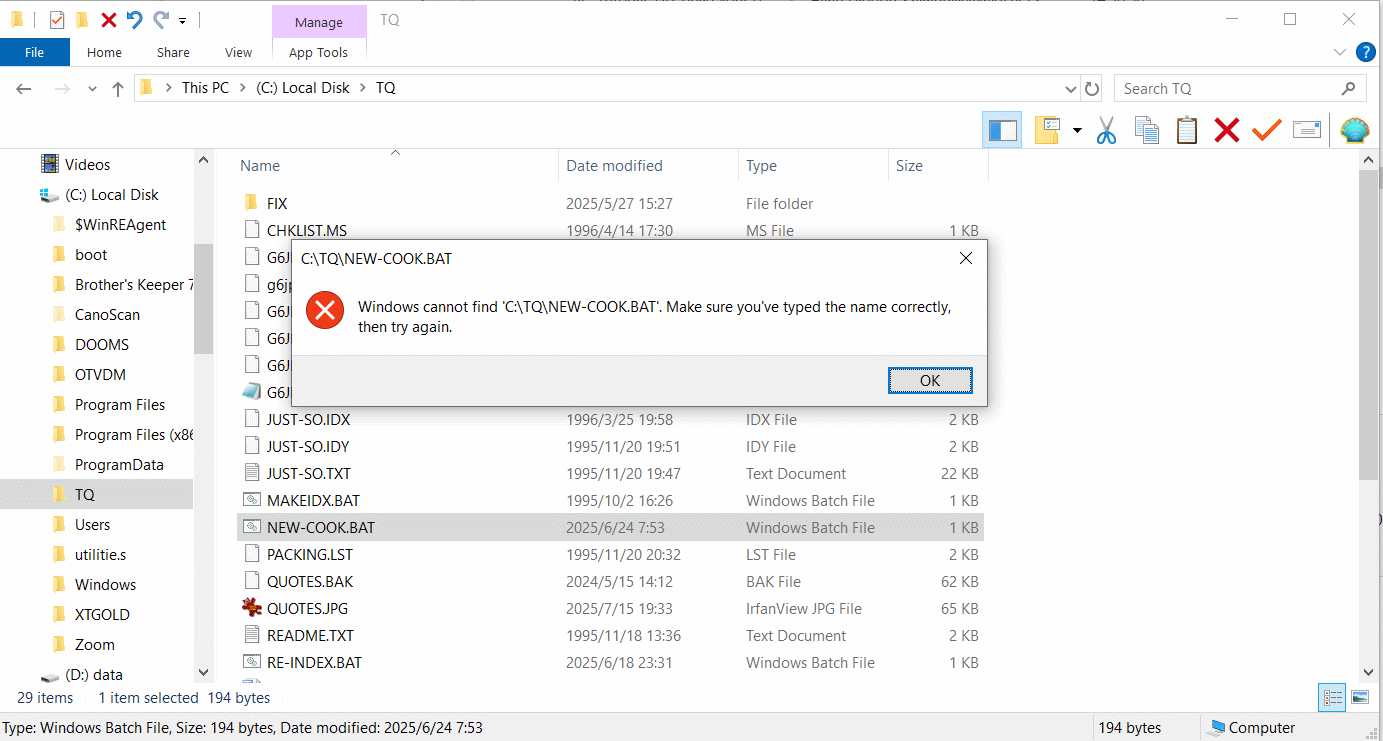
See https://255soft.uk/temp/Clipboard_07-29-2025_01.gif - which was
taken immediately after double-clicking the file. As you can see, it's definitely there.
If I right-click it and select edit, it opens in Notepad (it's just a
batch file, only five lines, two of which are rem and one blank). What's more, I just tried "Open command window here" and typed the filename
(without the .bat of course) and it ran fine. (Then double-clicked it
from Explorer again, in case it had "got better" - it hadn't.)
This has happened before (in Windows 10 - I don't remember it ever under
7 or before); I don't know what triggers it. This only happens
sometimes; normally, the batch file (which I have as a scheduled task
[using System Scheduler] to run 42 minutes past each hour) runs fine,
either at its appointed time or if I run it manually.
On 2025-07-29 22:10, J. P. Gilliver wrote:
See https://255soft.uk/temp/Clipboard_07-29-2025_01.gif - which was
taken immediately after double-clicking the file. As you can see, it's
definitely there.
If I right-click it and select edit, it opens in Notepad (it's just a
batch file, only five lines, two of which are rem and one blank). What's
more, I just tried "Open command window here" and typed the filename
(without the .bat of course) and it ran fine. (Then double-clicked it
from Explorer again, in case it had "got better" - it hadn't.)
Type "NEW" then tab. maybe there is an extra space or hidden char.
J. P. Gilliver. UMRA: 1960/<1985 MB++G()AL-IS-Ch++(p)Ar@T+H+Sh0!:`)DNAf
This has happened before (in Windows 10 - I don't remember it ever under
7 or before); I don't know what triggers it. This only happens
sometimes; normally, the batch file (which I have as a scheduled task
[using System Scheduler] to run 42 minutes past each hour) runs fine,
either at its appointed time or if I run it manually.
--
No, this has been working fine for yonks - just W10 sometimes decides it can't see what's under its nose. (Typing its name in a command window - without any extra characters - made it run, too.) It should have run
just now, but obviously didn't. I'll go to that directory and open a
command prompt now - yes, it ran fine, so the_system_ _can_ access it!>
On 2025/7/29 21:27:33, Carlos E.R. wrote:
On 2025-07-29 22:10, J. P. Gilliver wrote:No, this has been working fine for yonks - just W10 sometimes decides it can't see what's under its nose. (Typing its name in a command window - without any extra characters - made it run, too.) It should have run
See https://255soft.uk/temp/Clipboard_07-29-2025_01.gif - which was
taken immediately after double-clicking the file. As you can see, it's
definitely there.
If I right-click it and select edit, it opens in Notepad (it's just a
batch file, only five lines, two of which are rem and one blank). What's >>> more, I just tried "Open command window here" and typed the filename
(without the .bat of course) and it ran fine. (Then double-clicked it
from Explorer again, in case it had "got better" - it hadn't.)
Type "NEW" then tab. maybe there is an extra space or hidden char.
just now, but obviously didn't. I'll go to that directory and open a
command prompt now - yes, it ran fine, so the _system_ _can_ access it!>
J. P. Gilliver. UMRA: 1960/<1985 MB++G()AL-IS-Ch++(p)Ar@T+H+Sh0!:`)DNAf
This has happened before (in Windows 10 - I don't remember it ever under >>> 7 or before); I don't know what triggers it. This only happens
sometimes; normally, the batch file (which I have as a scheduled task
[using System Scheduler] to run 42 minutes past each hour) runs fine,
either at its appointed time or if I run it manually.
--
This was before we knew that a laboratory rat, if experimented upon, will develop cancer. [Quoted by] Anne ([email protected]), 1997-1-29
See https://255soft.uk/temp/Clipboard_07-29-2025_01.gif - which was
taken immediately after double-clicking the file. As you can see, it's definitely there.
If I right-click it and select edit, it opens in Notepad (it's just a
batch file, only five lines, two of which are rem and one blank). What's more, I just tried "Open command window here" and typed the filename
(without the .bat of course) and it ran fine. (Then double-clicked it
from Explorer again, in case it had "got better" - it hadn't.)
This has happened before (in Windows 10 - I don't remember it ever under
7 or before); I don't know what triggers it. This only happens
sometimes; normally, the batch file (which I have as a scheduled task
[using System Scheduler] to run 42 minutes past each hour) runs fine,
either at its appointed time or if I run it manually.
No, this has been working fine for yonks - just W10 sometimes decides it can't see what's under its nose. (Typing its name in a command window - without any extra characters - made it run, too.) It should have run
just now, but obviously didn't. I'll go to that directory and open a
command prompt now - yes, it ran fine, so the _system_ _can_ access it!>
On 29/07/2025 23:41, J. P. Gilliver wrote:
No, this has been working fine for yonks - just W10 sometimes decides it
can't see what's under its nose. (Typing its name in a command window -
without any extra characters - made it run, too.) It should have run
just now, but obviously didn't. I'll go to that directory and open a
command prompt now - yes, it ran fine, so the_system_ _can_ access it!>
Is the file location in the System or User path? The system can't find "ANYTHING" unless the file in question is in the path of the system.
You can edit the path variable by going to Environment Variables. See
this image:
<https://i.imgur.com/AaT2E0Z.png>
You need to change at only one place: Either at user's config (top part)
or System (bottom part) The system gives access to all user account
while user settings gives access to that user only.
On 2025/7/29 23:55:45, Here You Go wrote:
On 29/07/2025 23:41, J. P. Gilliver wrote:
No, this has been working fine for yonks - just W10 sometimes decides it >>> can't see what's under its nose. (Typing its name in a command window -
without any extra characters - made it run, too.) It should have run
just now, but obviously didn't. I'll go to that directory and open a
command prompt now - yes, it ran fine, so the_system_ _can_ access it!> >>
Is the file location in the System or User path? The system can't find
"ANYTHING" unless the file in question is in the path of the system.
No, but it's called:
(a) from a scheduler, which specifies "C:\TQ\NEW-COOK.BAT", i. e. gives
the full name including path.
or(b) by actually double-clicking on it (the .bat file itself) in File Explorer: see https://255soft.uk/temp/Clipboard_07-29-2025_01.gif (*not
just the error message but the screen around it*).
Neither of those - where "finding" it should not be a problem - are
working at the moment.
This has worked in the past, and probably will again in the future - I
don't think I've tried a restart, for example; I was just puzzled at
what's going on.
Assuming this problem is with one unique .bat have you tried creating a
You can edit the path variable by going to Environment Variables. See
this image:
<https://i.imgur.com/AaT2E0Z.png>
You need to change at only one place: Either at user's config (top part)
or System (bottom part) The system gives access to all user account
while user settings gives access to that user only.
On Tue, 7/29/2025 6:41 PM, J. P. Gilliver wrote:
On 2025/7/29 21:27:33, Carlos E.R. wrote:
On 2025-07-29 22:10, J. P. Gilliver wrote:
See https://255soft.uk/temp/Clipboard_07-29-2025_01.gif - which was
taken immediately after double-clicking the file. As you can see, it's >>>> definitely there.
No, this has been working fine for yonks - just W10 sometimes decides it
can't see what's under its nose. (Typing its name in a command window -
without any extra characters - made it run, too.) It should have run
just now, but obviously didn't. I'll go to that directory and open a
command prompt now - yes, it ran fine, so the _system_ _can_ access it!>
You can see in the article here, there is more to Windows than just a %path%. This article is dated 2010, and Metro.Apps might not be included here.
https://helgeklein.com/blog/how-the-app-paths-registry-key-makes-windows-both-faster-and-safer/
And while there is this mechanism (with more than one kind of "thing" in it), this isn't a solution to "where is my stuff" either. This is not an exhaustive
mechanism. Neither apparently, is a WMIC script.
explorer.exe shell:appsFolder
*******
It's possible there is something peculiar about where or how that folder
got unpacked, but what tool would we use which is knowledgeable enough,
to figure out what is wrong ?
[Picture]
https://i.postimg.cc/X7GPKrtP/Co-Pilot-My-BAT-File-Wont-Start.gif
The only word that stood out there was "Permissions".
*******--
SuperFetch/Sysmain is a way for your executables-activities to be noted
and for the item to be pre-loaded into memory. But this is not going to prevent a path resolution issue from stopping launch. Sysmain makes
the item potentially launch faster, because it operates a cache for you,
but it should not influence whether a security feature applies or
a security feature is bypassed. It's not intended for "hacking" the system.
https://en.wikipedia.org/wiki/Windows_Vista_I/O_technologies#SuperFetch
Paul
"J. P. Gilliver" <[email protected]> wrote:
See https://255soft.uk/temp/Clipboard_07-29-2025_01.gif - which was
taken immediately after double-clicking the file. As you can see, it's
definitely there.
If I right-click it and select edit, it opens in Notepad (it's just a
batch file, only five lines, two of which are rem and one blank). What's
more, I just tried "Open command window here" and typed the filename
(without the .bat of course) and it ran fine. (Then double-clicked it
from Explorer again, in case it had "got better" - it hadn't.)
This has happened before (in Windows 10 - I don't remember it ever under
7 or before); I don't know what triggers it. This only happens
sometimes; normally, the batch file (which I have as a scheduled task
[using System Scheduler] to run 42 minutes past each hour) runs fine,
either at its appointed time or if I run it manually.
You make it sound like double-clicking the .bat file is flaky: sometimes
it works, sometimes not. Or, do you always get the error message in
File Explorer when double-clicking the .bat file?
Same error happens if you load explorer.exe (File Explorer) with admin privileges (i.e., elevated)?
In an elevated command shell,
up to see to what COMSPEC is set. On my Win10 host, I get
"ComSpec=C:\WINDOWS\system32\cmd.exe" (sans double quotes), and camel
case for the envvar name. However, I've read where some users had
"comspec" (all lowercase), and setting to COMSPEC (all uppercase) fixed problems with calling cmd.exe (to load a shell) to run a .bat file
resolved their problem. That envvar must be defined, and it must point
to that command shell. I have seen users report running ftype batfile
to find C:\PHP, changed it back to the standard string, and File
Explorer could then correctly load the expect command shell.
Running ftype to change the envvar's string value probably has scope
within the command shell where you ran it. You need to run sysdm.cpl, Advanced tab, Environment Variables button, and make sure ComSpec is correctly defined as a *system* environment variable. If you define as
a user envvar, it is effected only when you later log into the same
Windows account where you edit the ComSpec user envvar. You want it
defined as a system envvar. ComSpec should only be defined as a system envvar.
In an elevated command shell, type "ftype batfile". What do you get
back in stdout? Should be batfile="%1" %*. The first argument is an
environment variable for the first parameter which should've been the filename (C:\TQ\NEW-COOK.BAT). It is enclosed in double-quotes should
the path to the file, or the filename itself, contain space characters.
%* are the rest of the command-line arguments which would be any
arguments you specify on the command line to the .bat file, if any.
Even if you use Shift in the batch script, all shifting is ignored, and
you get back all the arguments specified in the command line to run the
.bat file. %0 is the bat file itself.
In the registry, look at HKEY_CLASSES_ROOT\batfile. Go under the shell
subkey to see how the open action is defined under the command subkey.
You should see the same listed there as when using ftype which should
show the above string already mentioned. This is what mine looks like
(with the open->command subkey selected):
https://imgur.com/z0b6cep
Since there is a shellex subkey there, presumably that hints that shell
extensions could affect how batfile filetypes are handled. Rather than
guess what you, or some software, might've installed as shell
extensions, use Nirsoft's ShellExView tool to look.
https://www.nirsoft.net/utils/shexview.html
Click on its Type column header to sort by that criteria. Then all
shell extensions of the same type are grouped together. Some shell extensions are poorly coded, or not completely removed when uninstalled
(so File Explorer tries to find a non-existing/orphaned shell
extension). Other than looking for untoward shell extension, or those
that I don't remember installing (usually as a "feature" of a software install), I'd be floundering at this point to determine which type of
shell extension to be hunting for a culprit that interferes with File Explorer properly loading the cmd.exe command shell to then pass the double-clicked filename to the command shell. Paul might have an idea
which shell extensions could screw up File Explorer regarding loading
what is specified by the ComSpec environment variable. The problem
looks to be local to File Explorer since you can use other shells to
load okay the .bat file.
In File Explorer, right-click on the .bat file, and run as
administrator. Does it work that way? If so, in File Explorer,
right-click on the C:\TC folder, and select Properties in the context
menu. Click on the Security tab, and then on the Advanced button. If
you are logged under an admin-level Windows account, do you have "Full control" for access to the folder? For non-admin logins, does the Users security group have "Read & execute" permissions?
Do the same on the .bat file itself. It is possible a file has
different permissions than the folder it is inside (its parent). TheFor the .bat file, it says the first "Administrators ..." line is
typical setup is to inherit permissions from the parent. Check if admin accounts have full control, and users have read & execute.
On 2025/7/30 3:53:49, VanguardLH wrote:
see to what COMSPEC is set.
I see "ComSpec=C:\Windows\system32\cmd.exe; C:\utilitie.s". (I get the
same if I run "set" in a non-elevated command window.)
In the registry, look at HKEY_CLASSES_ROOT\batfile. Go under the
shell
Under HKLM, ...
subkey to see how the open action is defined under the command subkey.
You should see the same listed there as when using ftype which should
show the above string already mentioned. This is what mine looks like
(with the open->command subkey selected):
https://imgur.com/z0b6cep
Ah, rather than HKLM/batfile, perhaps you meant HKEY_LOCAL_MACHINE\SOFTWARE\Classes\batfile?
In my Computer\HKEY_LOCAL_MACHINE\SOFTWARE\Classes\batfile\shell\open\command, there is (Default), set to <"%1" %*>.>
Assuming this problem is with one unique .bat have you tried creating a
new .bat file with different name but same content to see what that does?
(just for curiosity
tried double-clicking it - got something like "Windows can't run this" -
not can't_find_; presumably because it was of 0 size at that point.)
Opened n.bat for editing, Ctrl-V (paste), close, yes save.
Unfortunately, still got the can't find when double-clicking on the new
n.bat . And running it as admin works.
"J. P. Gilliver" <[email protected]> wrote:
On 2025/7/30 3:53:49, VanguardLH wrote:
see to what COMSPEC is set.
I see "ComSpec=C:\Windows\system32\cmd.exe; C:\utilitie.s". (I get the
same if I run "set" in a non-elevated command window.)
There is too much in your string value for the ComSpec envvar. It
should ONLY point at which handler to run to load a command shell.
Everything from the semicolon, and afterward, should not be specified in ComSpec. The envvar points to a handler, not to a list of handlers or
paths.
https://en.wikipedia.org/wiki/COMSPEC
In the registry, look at HKEY_CLASSES_ROOT\batfile. Go under the
shell
Under HKLM, ...
Go back to the HKCR pseudo-hive. I could show the path to the same key
in HKLM, but would have to drill down.
No.(Default) REG_SZ "%1" %*subkey to see how the open action is defined under the command subkey.
You should see the same listed there as when using ftype which should
show the above string already mentioned. This is what mine looks like
(with the open->command subkey selected):
https://imgur.com/z0b6cep
Ah, rather than HKLM/batfile, perhaps you meant
HKEY_LOCAL_MACHINE\SOFTWARE\Classes\batfile?
Yep, that shows the same stuff under HKCR.
In my
Computer\HKEY_LOCAL_MACHINE\SOFTWARE\Classes\batfile\shell\open\command,
there is (Default), set to <"%1" %*>.>
With the angle brackets, too?
On 30/07/2025 22:32, J. P. Gilliver wrote:
(just for curiosity
tried double-clicking it - got something like "Windows can't run this" -
not can't_find_; presumably because it was of 0 size at that point.)
Opened n.bat for editing, Ctrl-V (paste), close, yes save.
Unfortunately, still got the can't find when double-clicking on the new
n.bat . And running it as admin works.
Something in your registry has changed. Perhaps take images of "runas"
and "runasuser". Something must have changed either you did it when
trying something given on these newsgroups or some malware or some app changed it because they "know better than anybody on this planet!!"
See the image to see what I am talking about.
<https://i.imgur.com/9Z79cvg.png>
PLEASE DON'T MAKE ANY CHANGES WITHOUT BACKING UP/EXPORTING THE REGISTRY
NODE.
There is also .bat node in the same place so take a backup of that as well.
To take the backup, you need to right-click on the node (in this case batfile) and choose export. Give a file name and remember where it is
saved.
To import the file, you need "File >> Import" when you open regedit or regedit32.
G/L
I go to "Edit the system environment variables". Advanced tab.
Environment variables... button. Select ComSpec (in System variables). Edit... button.
I now get a box, with a lined area (like lined paper), with %SystemRoot%\system32\cmd.exe on the top line, and C:\utilitie.s on the second line. (Other lines blank.) No semicolon anywhere. This
presentation suggest to me that the parameter _is_ capable of multiple entries.
Nevertheless, I select the second line, Delete button, and OK my way
out (the semicolon has gone from the next level out). Go back to the
C:\TQ directory in File Manager. Double-click NEW-COOK.BAT. "Windows
cannot find 'C:\TQ\NEW-COOK.BAT'.
So I'm putting the second part back, as it didn't work. Incidentally,
there's a New button in that edit window, which opens up the second
line, which suggests to me that that is supposed to be possible. (If it isn't, why is the New button there?)
Click on HKCR. F3, batfile. F3 again: finds Computer\HKEY_CLASSES_ROOT\batfile, containing three things:
(Default) REG_SZ Windows Batch File
EditFlags REG_BINARY 30 04 00 00
and
FriendlyTypeName REG_EXPAND_SZ
@%SystemRoot%\System32\acppage.dll,-6002
"J. P. Gilliver" <[email protected]> wrote:
I go to "Edit the system environment variables". Advanced tab.
Environment variables... button. Select ComSpec (in System variables).
Edit... button.
I now get a box, with a lined area (like lined paper), with
%SystemRoot%\system32\cmd.exe on the top line, and C:\utilitie.s on the
second line. (Other lines blank.) No semicolon anywhere. This
presentation suggest to me that the parameter _is_ capable of multiple
entries.
That is how the wizard editor works. Each entry in a string value is on
a separate line. Look at the PATH envvar which should have multiple
entries. In the display window, the entries are shown as strings
separated by a semicolon. With PATH selected, click on Edit to open the wizard editor, and each entry is shown on a separate line. The editor's layout makes it easy to add individual entries without concern for the
actual syntax needed for the envvar. If you run 'set' (no args), you'll
Nevertheless, I select the second line, Delete button, and OK my way
out (the semicolon has gone from the next level out). Go back to the
C:\TQ directory in File Manager. Double-click NEW-COOK.BAT. "Windows
cannot find 'C:\TQ\NEW-COOK.BAT'.
If you use the wizard to change envvars, changes should be effected immediately after you save your changes. Make sure to use the wizard
editor, make changes, save, exit the editor, and exit the wizard.
Explorer should broadcast a WM_SETTINGCHANGE message to all windows to
inform them of the change. Programs spawned afterward via Explorer
should get the updated envvars, but existing programs may not. Perhaps
you still had an instance of explorer.exe running when you edited the envvars, and tried reusing that instance. To ensure the system and user envvar changes are effected everywhere without concern for current or
child shells getting updated, I usually restart Windows to be sure.
By the way, do you really have a folder called "C:\utilitie.s"? If so,
what is under there?
HKEY_CLASSES_ROOT\.bat
is the filetype definition. It's specified handler is batfile.
HKEY_CLASSES_ROOT\batfile
is where the batfile handler is defined. That is what I showed in my
screenshot of that registry key at https://imgur.com/z0b6cep. Under the "shell" subkey are action subkeys, like edit, open, print, runas, and runasuser. Double-clicking a .bat file in File Explorer has File
Explorer open the the file, so there is an "open" action subkey
containing a "command" subkey pointing to the handler (cmd.exe).
However, all the "open" key has for a command is the arguments of %1 and
%*. Windows finds the shell handler by using ComSpec, it passes the
"%1" %* string to what ComSpec points.
There have been other command shells available for Windows, and they
implant themselves by changing the ComSpec envvar to point at the
alternative shell program. Malware may change ComSpec to obfuscate
their commands to avoid detection. The ";C:\utilitie.s" is a remnant
from something that didn't work right when editing the ComSpec envvar.
.s files are files written in assembly. .s files are text containing assembly code, so they are not executable, and a shell is a program you
load. I was thinking it might be a folder, but it could be an .s
filetype possibly containing assembly code. It cannot be executed, but
then listing it in ComSpec is going to screw up parsing it to find the
shell program.
https://fileinfo.com/extension/s
With what you have for CompSpec, you end up with the OS trying to run:
C:\Windows\system32\cmd.exe;C:\utilitie.s "%1" %*
| |
filename passed by File Explorer -----------' '--- other args added
by the caller prog
when what you want to run is:
C:\Windows\system32\cmd.exe "%1" %*
Even if ComSpec is not the cause of your problem, what you currently
have defined for the ComSpec envvar is wrong. It should point to the
shell program, not to a program and a folder.
Did YOU define ComSpec to specify both an executable program and a
folder? Seems like something you uninstalled fucked up that envvar.
Whenever YOU specify cmd.exe to load a shell, you can run the .bat file.
Only when double-clicking on a .bat file in File Explorer results in the
"not found" error message. That is why I mentioned the invalidly
syntaxed ComSpec envvar. When you specify cmd.exe, it works. When you
have File Explorer file the shell program via ComSpec, it fails.
On 30/07/2025 22:32, J. P. Gilliver wrote:
(just for curiosity
tried double-clicking it - got something like "Windows can't run this" -
not can't_find_; presumably because it was of 0 size at that point.)
Opened n.bat for editing, Ctrl-V (paste), close, yes save.
Unfortunately, still got the can't find when double-clicking on the new
n.bat . And running it as admin works.
Something in your registry has changed. Perhaps take images of "runas"
and "runasuser". Something must have changed either you did it when
trying something given on these newsgroups or some malware or some app changed it because they "know better than anybody on this planet!!"
See the image to see what I am talking about.
<https://i.imgur.com/9Z79cvg.png>
PLEASE DON'T MAKE ANY CHANGES WITHOUT BACKING UP/EXPORTING THE REGISTRY
NODE.
There is also .bat node in the same place so take a backup of that as well.
To take the backup, you need to right-click on the node (in this case batfile) and choose export. Give a file name and remember where it is
saved.
To import the file, you need "File >> Import" when you open regedit or regedit32.
G/L
| Sysop: | Keyop |
|---|---|
| Location: | Huddersfield, West Yorkshire, UK |
| Users: | 764 |
| Nodes: | 16 (2 / 14) |
| Uptime: | 24:29:37 |
| Calls: | 12,756 |
| Calls today: | 4 |
| Files: | 15,359 |
| Messages: | 6,556,749 |