When I use an app, say good old Everything, the file
listing font size is just fine. What is not fine, is the
font used in the box where I type the search argument. It
is -minute- on a hi-res screen. It is almost unreadbly
small.
I can't find a setting for the size anywhere. There must
be one. ?
Thanks.
Jason wrote:
When I use an app, say good old Everything, the file
listing font size is just fine. What is not fine, is the
font used in the box where I type the search argument. It
is -minute- on a hi-res screen. It is almost unreadbly
small.
There is a claim of a .ini file provided size setting.
So it's not in the registry, not in the GUI, in a file somewhere.
Paul <[email protected]d> wrote:
Jason wrote:
When I use an app, say good old Everything, the file
listing font size is just fine. What is not fine, is the
font used in the box where I type the search argument. It
is -minute- on a hi-res screen. It is almost unreadbly
small.
There is a claim of a .ini file provided size setting.
So it's not in the registry, not in the GUI, in a file somewhere.
C:\Program Files\Everything\Everything.ini
It is a text file. Nothing in mine is about fonts or sizing. More info here:
https://www.voidtools.com/support/everything/ini/
There are search_edit_font* settings listed there, but it is unclear if
the problem is with the font and size inside the search box element, or
if the search element itself is too small.
Note that I configured my Windows display for 150 DPI, not the standard
96 DPI. The higher the resolution of the screen, the smaller the text becomes. Same number of pixels for a character, but a higher resolution screen shows the same number of pixels in a smaller space. Upping the
DPI makes the text bigger.
However, that has no effect on elements within a GUI screen, like text
within listboxes or text on buttons. In fact, if you up the DPI of the screen, a non-DPI aware program will paint larger characters that
probably won't fit inside the element, so you end up with truncated text
at the end or bottom of the GUI element.
I've not had to use DPI compatibility modes with voidtools' Everything,
so I suspect it is a DPI-aware program. The OP could try the search_edit_font* settings in Everything.ini, but the result could be truncated text if the search element itself doesn't enlarge to
accommodate larger fonts.
In article <[email protected]>, [email protected]
says...
C:\Program Files\Everything\Everything.ini
It is a text file. Nothing in mine is about fonts or sizing. More info
here:
https://www.voidtools.com/support/everything/ini/
There are search_edit_font* settings listed there, but it is unclear if
the problem is with the font and size inside the search box element, or
if the search element itself is too small.
Note that I configured my Windows display for 150 DPI, not the standard
96 DPI. The higher the resolution of the screen, the smaller the text
becomes. Same number of pixels for a character, but a higher resolution
screen shows the same number of pixels in a smaller space. Upping the
DPI makes the text bigger.
However, that has no effect on elements within a GUI screen, like text
within listboxes or text on buttons. In fact, if you up the DPI of the
screen, a non-DPI aware program will paint larger characters that
probably won't fit inside the element, so you end up with truncated text
at the end or bottom of the GUI element.
I've not had to use DPI compatibility modes with voidtools' Everything,
so I suspect it is a DPI-aware program. The OP could try the
search_edit_font* settings in Everything.ini, but the result could be
truncated text if the search element itself doesn't enlarge to
accommodate larger fonts.
The problem isn't limited to Everything. It happens with
all dialogs...
On Wed, 7/23/2025 4:41 PM, Jason wrote:
In article <[email protected]>, [email protected]
says...
C:\Program Files\Everything\Everything.ini
It is a text file. Nothing in mine is about fonts or sizing. More info >>> here:
https://www.voidtools.com/support/everything/ini/
There are search_edit_font* settings listed there, but it is unclear if
the problem is with the font and size inside the search box element, or
if the search element itself is too small.
Note that I configured my Windows display for 150 DPI, not the standard
96 DPI. The higher the resolution of the screen, the smaller the text
becomes. Same number of pixels for a character, but a higher resolution >>> screen shows the same number of pixels in a smaller space. Upping the
DPI makes the text bigger.
However, that has no effect on elements within a GUI screen, like text
within listboxes or text on buttons. In fact, if you up the DPI of the
screen, a non-DPI aware program will paint larger characters that
probably won't fit inside the element, so you end up with truncated text >>> at the end or bottom of the GUI element.
I've not had to use DPI compatibility modes with voidtools' Everything,
so I suspect it is a DPI-aware program. The OP could try the
search_edit_font* settings in Everything.ini, but the result could be
truncated text if the search element itself doesn't enlarge to
accommodate larger fonts.
The problem isn't limited to Everything. It happens with
all dialogs...
I seem to have done my changes in
Settings : System : Display
Scale 200%
Display resolution 3840x2160 [27" slab, too small for 4K]
display orientation Landscape
The icons on the desktop, the font for that is a bit small.
In Advanced Display (not really all that Advanced)
KG272K L <=== Acer monitor model number
Bit Depth 8 bit
...
Refresh 60 Hz (business monitor, not gamer monitor)
The odd thing has had a HiDPI setting, which can help or hinder.
In VirtualBox, setting the display properties on individual VMs
to 200% or something, may have fixed those. It was a tiny curse
at first.
Usually, it is a matter of farting around and finding
"all the places with display settings" and then deciding
"which of those isn't the setting you want" :-)
A legacy Win32 App, likely has no thought of HiDPI in it.
My computer table mod is roughed in. But still needs a bit
more work. Right now, I'm taking a break from driving
screws in the thing, as I broke the Robertson bit in
my socket set :-) But for this moment at least, my table
is temporarily 8 inches wider than it was. Needs a bit more
sawing.
Paul
In article <[email protected]>, [email protected]
says...
Paul <[email protected]d> wrote:
Jason wrote:
When I use an app, say good old Everything, the file
listing font size is just fine. What is not fine, is the
font used in the box where I type the search argument. It
is -minute- on a hi-res screen. It is almost unreadbly
small.
There is a claim of a .ini file provided size setting.
So it's not in the registry, not in the GUI, in a file somewhere.
C:\Program Files\Everything\Everything.ini
It is a text file. Nothing in mine is about fonts or sizing. More info
here:
https://www.voidtools.com/support/everything/ini/
There are search_edit_font* settings listed there, but it is unclear if
the problem is with the font and size inside the search box element, or
if the search element itself is too small.
Note that I configured my Windows display for 150 DPI, not the standard
96 DPI. The higher the resolution of the screen, the smaller the text
becomes. Same number of pixels for a character, but a higher resolution
screen shows the same number of pixels in a smaller space. Upping the
DPI makes the text bigger.
However, that has no effect on elements within a GUI screen, like text
within listboxes or text on buttons. In fact, if you up the DPI of the
screen, a non-DPI aware program will paint larger characters that
probably won't fit inside the element, so you end up with truncated text
at the end or bottom of the GUI element.
I've not had to use DPI compatibility modes with voidtools' Everything,
so I suspect it is a DPI-aware program. The OP could try the
search_edit_font* settings in Everything.ini, but the result could be
truncated text if the search element itself doesn't enlarge to
accommodate larger fonts.
The problem isn't limited to Everything. It happens with
all dialogs...
Paul <[email protected]d> wrote:
Jason wrote:
When I use an app, say good old Everything, the file
listing font size is just fine. What is not fine, is the
font used in the box where I type the search argument. It
is -minute- on a hi-res screen. It is almost unreadbly
small.
There is a claim of a .ini file provided size setting.
So it's not in the registry, not in the GUI, in a file somewhere.
C:\Program Files\Everything\Everything.ini
Sounds like a complicated project, so may take you a while.
I wonder if home depot or similar stores may have the
special robertson screwdrivers, so you won't have to > special order them?
On Wed, 7/23/2025 8:08 PM, Hank Rogers wrote:
Sounds like a complicated project, so may take you a while.�
I wonder if home depot or similar stores may have the
special robertson screwdrivers, so you won't have to > special order them?
It's a socket set from a certain store. I checked the back of the
caddy with the socket bits in it, and it says "guaranteed forever".
Which means I go up there, give them the bit, and they give me
a chinese one in return :-)
In Canada, Robertson heads (square thing) are popular. Philips
head (point cross-thing) those ream out the screw heads easier.
The square drive is quite a bit better. And there are various
variants, like the square drive is shaped on the sides (sculpted)
so it gives a snug fit to the head. That's the surprising part,
it this wasn't a ream-out failure, this was a Robertson
fitted snugly into a stainless screw, and the head of the bit
snapped off.
I don't think I've ever seen one of those snap. And I've put some
of them through living hell, they get worn a bit, but they don't snap.
These are three inch, stainless steel screws, that cost $0.78 each.
They thread is deeper than the average wood screw. I always
drill pilots for stuff like this. But no question it was taking
quite a bit of drive from the ratchet. It takes about fifty ratchet
actions to drive one of those, and that was the eighth and final
screw. And it snapped on the last twist :-) So the job got done
and then it snapped. Very nice.
That's why I mentioned in the other post, I don't look forward
to doing these. But I wasn't expecting that to happen.
And the reason I bought the stainless screws, is I had a pack of
regular steel wood screws that I used to build a keyboard tray
from scrap lumber. And those, you could barely get them tight,
before the soft Philips head would start to tear out. Dreadfully
bad steel screws. So I said "fine, next project, we go with
the stainless". And the screwdriver has the heart failure instead.
Paul
Jason <[email protected]> wrote:
In article <[email protected]>, [email protected]
says...
Paul <[email protected]d> wrote:
Jason wrote:
When I use an app, say good old Everything, the file
listing font size is just fine. What is not fine, is the
font used in the box where I type the search argument. It
is -minute- on a hi-res screen. It is almost unreadbly
small.
There is a claim of a .ini file provided size setting.
So it's not in the registry, not in the GUI, in a file somewhere.
C:\Program Files\Everything\Everything.ini
It is a text file. Nothing in mine is about fonts or sizing. More info >>> here:
https://www.voidtools.com/support/everything/ini/
There are search_edit_font* settings listed there, but it is unclear if
the problem is with the font and size inside the search box element, or
if the search element itself is too small.
Note that I configured my Windows display for 150 DPI, not the standard
96 DPI. The higher the resolution of the screen, the smaller the text
becomes. Same number of pixels for a character, but a higher resolution >>> screen shows the same number of pixels in a smaller space. Upping the
DPI makes the text bigger.
However, that has no effect on elements within a GUI screen, like text
within listboxes or text on buttons. In fact, if you up the DPI of the
screen, a non-DPI aware program will paint larger characters that
probably won't fit inside the element, so you end up with truncated text >>> at the end or bottom of the GUI element.
I've not had to use DPI compatibility modes with voidtools' Everything,
so I suspect it is a DPI-aware program. The OP could try the
search_edit_font* settings in Everything.ini, but the result could be
truncated text if the search element itself doesn't enlarge to
accommodate larger fonts.
The problem isn't limited to Everything. It happens with
all dialogs...
It seems the issue is with too-small display of fonts everywhere. In
that case, up the DPI setting from the default of 96 (100%) to 150
(125%) which will make all text look bigger (due to the sizing issue
already mentioned with monitors as resolution goes up). However, for
non-DPI aware programs, the GUI elements don't enlarge, so the larger
text may not fit inside them, like listboxes, button labels, or input
fields. There are DPI compatibility settings you can try in a shortcut
to a non-DPI aware program.
I use 150 DPI, and Everything has no problem displaying text within its
GUI elements, so it appears Everything is DPI aware.
I think I picked an inappropriate example, Everything.
I am seeing what I asked about -everywhere- including
Windows builtin programs.
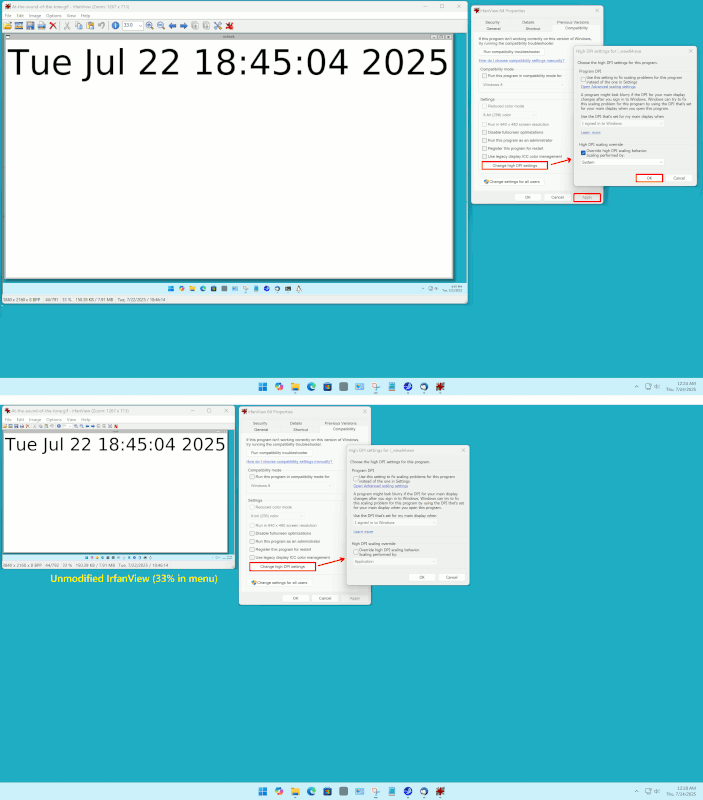
OK, now Irfanview is pretty brittle and is a legacy win32 type application.
On 2025/7/24 6:6:30, Paul wrote:
[]
OK, now Irfanview is pretty brittle and is a legacy win32 type application.
[]
Since version 4.40 (currently at 4.72) it's had a 64-bit version, though I don't know if "DPI-aware".
VanguardLH wrote:
Jason <[email protected]> wrote:
Jason wrote:
When I use an app, say good old Everything, the file
listing font size is just fine. What is not fine, is the
font used in the box where I type the search argument. It
is -minute- on a hi-res screen. It is almost unreadbly
small.
The problem isn't limited to Everything. It happens with
all dialogs...
It seems the issue is with too-small display of fonts everywhere. In
that case, up the DPI setting from the default of 96 (100%) to 150
(125%) which will make all text look bigger (due to the sizing issue
already mentioned with monitors as resolution goes up). However, for
non-DPI aware programs, the GUI elements don't enlarge, so the larger
text may not fit inside them, like listboxes, button labels, or input
fields. There are DPI compatibility settings you can try in a shortcut
to a non-DPI aware program.
I use 150 DPI, and Everything has no problem displaying text within its
GUI elements, so it appears Everything is DPI aware.
What physical size and what X*Y pixels are you using on yours ?
Mine is one of those 27" 3840x2160 which is "too small for 4K", which
is why mine is set at 200%. Maybe a 32" 4K, would work better at
a different scale value than that.
J. P. Gilliver wrote:
Paul wrote:
OK, now Irfanview is pretty brittle and is a legacy win32 type
application.
Since version 4.40 (currently at 4.72) it's had a 64-bit version,
though I don't know if "DPI-aware".
The term "win32" is a euphemism for "native Intel binary code x86 or
x64". The "bitness" is not implied by the 32 on the end, the 32 is an indicator that says "old old crusty native stuff" instead :-)
I was just surprised the computer store had 1920x1080 (lots of those), 2560x1600 (a couple gamers) and 3840x2160 (27" and 32" but no 32" in
stock).
All I really wanted was another 1440x900, but there was nothing like
that in the several stored I checked.
Paul
On Wed, 23 Jul 2025 22:50:31 -0400, Paul wrote:
[snip]
I was just surprised the computer store had 1920x1080 (lots of those),
2560x1600 (a couple gamers) and 3840x2160 (27" and 32" but no 32" in
stock).
All I really wanted was another 1440x900, but there was nothing like
that in the several stored I checked.
[snip]
Paul
Could you set the resolution of your current system to something smaller?
I suggest a resolution with the same aspect ratio as that higher
resolution.
I use a small laptop, and needed to reduce the resolution to make text
easily readable.
On Thu, 7/24/2025 7:50 AM, J. P. Gilliver wrote:
On 2025/7/24 6:6:30, Paul wrote:
[]
OK, now Irfanview is pretty brittle and is a legacy win32 type application. >>[]
Since version 4.40 (currently at 4.72) it's had a 64-bit version, though I don't know if "DPI-aware".
The term "win32" is a euphemism for "native Intel binary code x86 or x64". The "bitness" is not implied by the 32 on the end, the 32 is an indicator that says "old old crusty native stuff" instead :-)
Just as the filetype indication can be PE32 and PE32+.
The "32" in the second one, is in conflict with what
the "+" sign means and the plus sign indicated "this thing is 64-bit native". So in the PE32, the PE means "Portable Executable" and the 32 indicates crusty old native code. I expect the ARM version of an EXE would have
some other indication for it. I doubt I have any examples of such
ARM EXE in the room.
PE signature found
File Type: EXECUTABLE IMAGE
FILE HEADER VALUES
AA64 machine (ARM64) <=== (If we had a tool, the declaration would be PE32+ ARM64 or so)
6 number of sections
67110000 time date stamp Thu Oct 17 13:16:00 2024
0 file pointer to symbol table
0 number of symbols
FO size of optional header
22 characteristics
Executable
Application can handle large (>2GB) addresses
Figure 6: AA64 Machine in File Header.
The Metro.App on the other hand, is not a native binary, but is an interpreted
representation. The manifest file identifies "things" to be loaded and interpreted. The EXE in that case, as of today, has zero size. At one
time, the Metro.App EXE was a stub PE32 (an "empty" executable that just returns
if you executed it) plus manifest text identifying the components. Today.
the Metro.App EXE is absolutely empty and is just a marker
and the manifest is some separate file. Because of the permissions on
the various folders, there isn't much opportunity to study the thing.
With a Program Files design, curious users are more in a position to
learn about such things.
Paul
| Sysop: | Keyop |
|---|---|
| Location: | Huddersfield, West Yorkshire, UK |
| Users: | 741 |
| Nodes: | 16 (2 / 14) |
| Uptime: | 47:03:51 |
| Calls: | 12,444 |
| Calls today: | 4 |
| Files: | 15,192 |
| Messages: | 6,537,111 |