XPost: alt.comp.os.windows-11
david <
[email protected]d> wrote:
These images show the problem set I'm trying to better understand. https://i.postimg.cc/dQkdv8d5/Clipboard-11-22-2024.jpg https://i.postimg.cc/XYYBHhfD/Clipboard-11-22-2024a.jpg https://i.postimg.cc/vm0HkHvJ/Clipboard-11-22-2024b.jpg
About a week ago I needed to be on a Microsoft Teams meeting initiated by someone else so I didn't need a Microsoft login - just the meeting ID & passcode and that worked fine until... I rebooted.
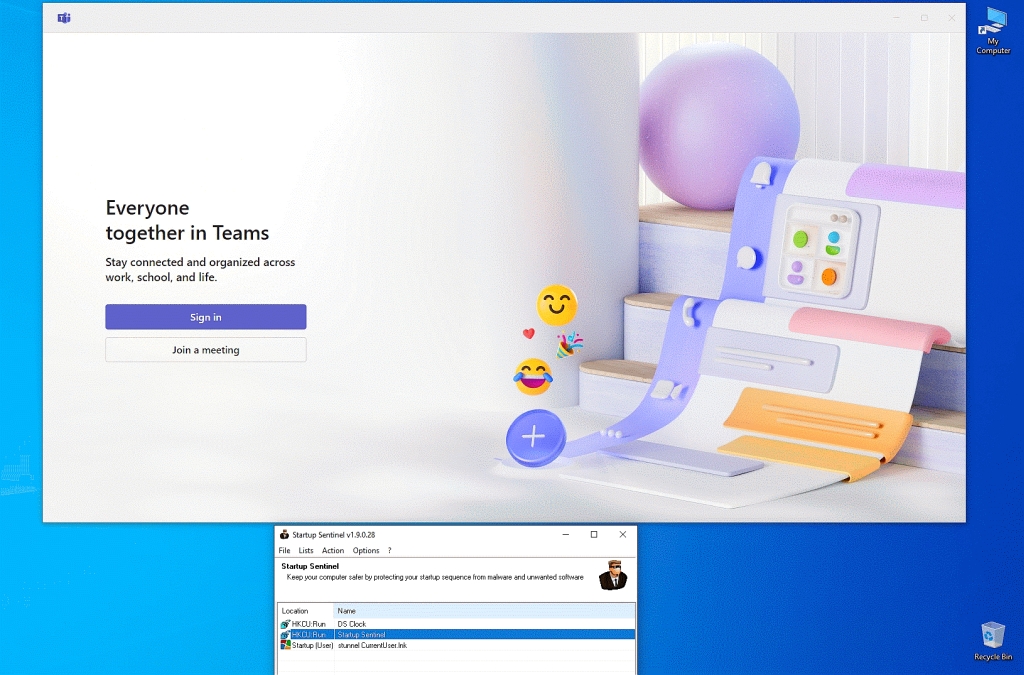
Now... every single time I reboot I get a full screen advertisement for "Everyone together in Teams" coming up "Stay connected and organized across work, school and life" which I don't want to come up (and which I don't see any setting in it to turn off).
All I can do at that window is sign in or join a meeting or X the window.
For a week I've been X'ing the window but I really need it to stop that.
Startup sentinel indicates bastards aren't using a normal startup method. Process explorer shows that it's just one an executable running (I think).
TeamViewer_Service.exe
Process explorer doesn't have the permissions to rightclick kill process.
Process explorer indicates it's somehow using this registry key. HKLM\System\CurrentControlSet\Services\TeamViewer
That key is complex such that I do not understand its implications.
Process explorer runs a search for you which found this which says keep it. https://malwaretips.com/blogs/teamviewer_service-exe-what-it-is-should-i-remove-it/
Services.msc tells me it's a running service set to Automatic start.
I set it to manual start just now (which should stop the autostart).
My question is why didn't startup sentinel show this as an autotart?
Since possibly you installed some client when you joined Teams (instead
of just using a web app in a web browser), did you look an Add/Remove
Programs to see if Teams was listed, and you could uninstall? Doesn't
appear you want to keep it. You didn't say how you joined the Teams
meeting. One way is to use a web browser: go to teams.microsoft, use
the Teams web app, log into your Microsoft account, and join the
meeting. Another way is to use their local client.
When I went into Add/Remove Programs, I noticed there was an entry for
Teams. I uninstalled it since I don't use it. Don't remember ever
installing it, but I do have Office 2021 Pro Plus, and maybe it got
installed that way, or Microsoft pushed it in an update. It didn't have
a typical app name. Instead it was called something like "Teams Machine
Wide Installer". To remove Teams, you have to uninstall both Teams and
the Machine-Wide Installer. The Machine-Wide Installer is a deployment
tool.
https://www.partitionwizard.com/partitionmanager/teams-machine-wide-installer.html
Never heard of Startup Sentinel. There are lots of tools that do the
same thing, but some only look in the common paths for auto-start
programs. SysInternals' Autorun is well known, and eventually acquired
by Microsoft. It looks in far more places than typical utilities, even
the msconfig from Microsoft. For example, a program may load as a logon
event: when you login, the program loads. From your screenshots, looks
like Startup Sentinel is a really basic tool looking only at the common
startup locations.
https://learn.microsoft.com/en-us/sysinternals/downloads/autoruns
From another screenshot where you are using Process Explorer (a
SysInternals tool, so you know about those), the process name indicates
the process was started as a service. Another screenshot shows you
looked in Services to find TeamsViewer. You could change its startup
mode to Disabled, but that probably means a local Teams client won't
function properly. Why do you have the Teams app installed rather than
use the web app? That the service is there likely means so is the local client, and Add/Remove Programs should get rid of Teams. If you do have
the local Teams app installed, and want to leave it installed, you could
change the service the Manual which will start the service when called.
At the end of your post, you change focus to Startup Sentinel. Well,
there is lots of crapware out there. Most of the bundled utility
programs give you low-grade tools instead of best of breed. Lots of
software authors don't know a lot about Windows regarding the tool they
supply. Use AutoRuns instead. However, I have found means of loading
programs on either Windows startup or on Windows account login that even SysInternals Autoruns missed, reported them, and that author updated his
tool, but that was eons ago, and like his tool has fully matured. For
expert users of Windows, AutoRuns is the way to go, and it's free.
When I searched on "Startup Sentinel", I found:
https://www.majorgeeks.com/files/details/startup_sentinel.html
My recollection is KC Software is one of those that provide low-grade
tools, and there are better choices. Right now, I can't get www.kcsoftwares.com to load. I get a home web page containing only "1"
(the character "1") with no HTML code at all. In Firefox, pressing F12
opens the Dev Console, and the Inspector tab show just the <HTML>,
<HEAD>, and <BODY> tags, but they are empty. When I visit
web.archive.org and show what it has recorded of that web site, it shows
the same blank web doc. I went back far enough through the archive to
find a copy of the home page that said:
Termination notice
KC Softwares activities are to be terminated by end of October 2023.
All products are to be considered as End-Of-Life (EOL) on October 31st
2023.
Sales are stopped.
Time to find a tool that is still supported, and a much better tool.
You're already using SysInternals Process Explorer, so use AutoRuns.
Not all tools are created the same. Hopefully you didn't pay for
Startup Sentinel since it seems an incapable tool. The big tool I
remember from KC Softwares was SUMo, a software update checker. My
opinion of Startup Sentinel is it is a low-end tool aka crapware as
evidenced also by its complete lack of documentation at:
https://web.archive.org/web/20230909115932/https://www.kcsoftwares.com/?sus
Not sure it gave you anything more than what msconfig already did that
has been bundled in Windows since Windows 98 (but not Win2000), although
in Win10 it got a bit neutered by moving some of its functions to Task
Manager. In Task Manager, use the Startup tab. That won't show you all
the auto-start programs, either. Instead of improving msconfig, or the
Startup tab in Task Manager, Microsoft's opinion of its users is they
are too stupid to understand that stuff, so you have to get a better
tool. They realized AutoRuns was already a valiant effort, and acquired
all of Sysinternals, and they also hired Russinovich.
https://en.wikipedia.org/wiki/Sysinternals
--- SoupGate-Win32 v1.05
* Origin: fsxNet Usenet Gateway (21:1/5)