XPost: alt.msdos.batch, rec.photo.digital
On Mon, 18 Nov 2024 01:07:17 +0100, Herbert Kleebauer <
[email protected]> wrote
I had to install Handbrake 1.8.2 which also required Net 8.0 on Windows.
I don't understand why it is easier to install new software instead
of using the already installed IrfanView.
DO NOT CLOSELY READ THIS POST - IT IS FOR REFERENCE - I WILL REWRITE IT!
(JUST NOTE THAT GETTING THE FRAME GRAB IN THE CLIPBOARD IS AN ISSUE.)
ONCE THE FRAMEGRAB IS IN THE CLIPBOARD, THEN YOUR BATCH FILE WORKS GREAT!
Thanks for bringing that up as the goal of every Usenet thread is also to
learn for the thousands of people who read this thread both now & forever.
Just to be super clear, I never said either way was easier, and in fact I
said I wanted a purely graphical "draw-the-box" solution, and as yet, we haven't found that area-draw method (but it probably exists... somewhere as it's a common need to want to draw an area box and then to want to crop the entire video to that drawn area box.
In fact I had done the Handbrake method before I saw your Irfanview method.
The Handbrake method was "said" to be purely graphical - but it's not.
It's partly graphical. Much like the Irfanview method is (only different).
What is really needed is a video player that shows the cursor X:Y position.
I have to believe that already exists on Windows 10.
Just because the cursor position is so obvious a need. It must exist.
But where?
I think you're probably correct that this mystery program could be
Irfanview since I tried your method and I like the way you think.
1. Open the video in your player and copy one video frame
to the clipboard (for the Potplayer this is just a <CTRL>-C).
You can close the player then. You can also start the player
in the batch if you want.
Saving a video frame is easy so that's not going to be a problem.
The player most people use on Windows (AFAIK) is either MPC-BE or VLC.
When I open output.mp5 in MPC the "MPC: File > Properties" tells me:
Width: 1,920 pixels
Height: 1,080 pixels
But unfortunately I see no option to display the cursor X:Y location.
Likewise with the venerable VLC (as far as I can tell anyway).
In MPC-BE (which most people use) there doesn't seem to be a way to save
the frame to a file. A Windows print-screen would be all wrong.
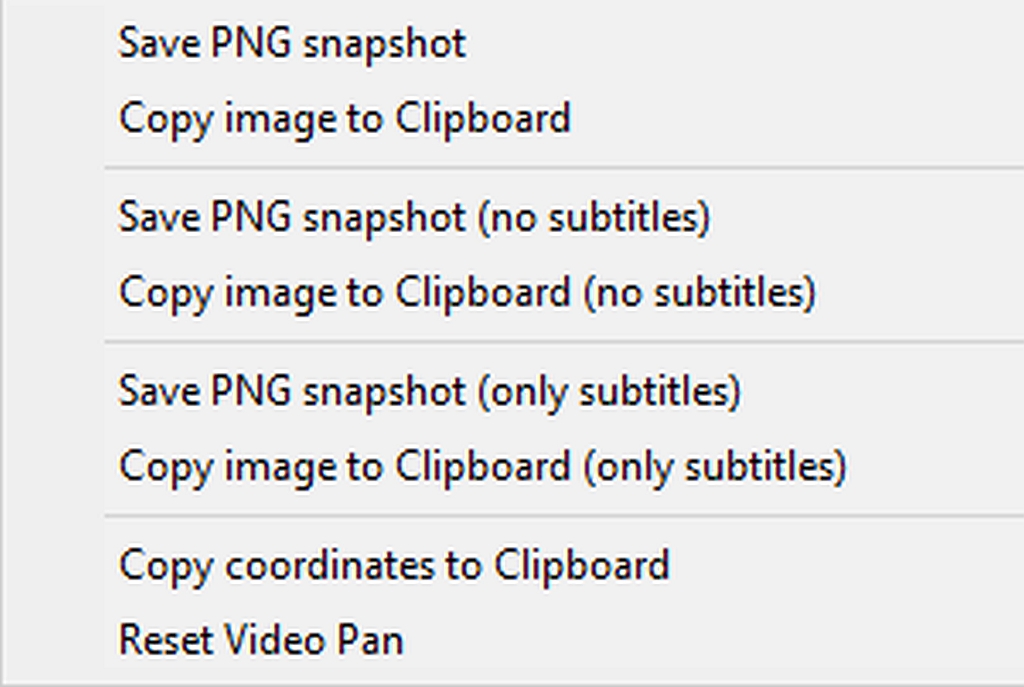
Luckily in VLC (which most people also use) there is an option
VLC:Video > Take snapshot" which puts a single-frame grab into C:\Users\you\Pictures\vlcsnap-2024-11-17-18h08m36s459.png
I'm not sure how to get that video frame into the clipboard though.
2. Execute this batch:
(I use the ini file in IrfanView, if you use the registry you have
to modify the batch. You also have to use the correct path to Irfanview).
I also use the ini file in Irfanview because I install into a custom
location and putting stuff in the registry is just asking for trouble.
I like the way you think.
:::::::::::::::::::::::::::::::::::::::::::::::::::::::::::::::::::::::::::::::::::
:::::::::::::::::::::::::::::::::::::::::::::::::::::::::::::::::::::::::::::::::::
@echo off
start /w "" D:\Programme\IrfanView\i_view32.exe /clippaste
for %%k in (CustSelX CustSelY CustSelW CustSelH) do (
for /f "delims=." %%i in ('find "%%k=" ^<D:\Programme\IrfanView\i_view32.ini') do set %%i
)
echo ffmpeg -i in.mp4 -vf "crop=%CustSelX%:%CustSelY%:%CustSelW%:%CustSelH%" -c:a copy out.mp4
:::::::::::::::::::::::::::::::::::::::::::::::::::::::::::::::::::::::::::::::::::
:::::::::::::::::::::::::::::::::::::::::::::::::::::::::::::::::::::::::::::::::::
I like the way you think so I copied that and changed the path to Irfanview
64 ini file (there was no 32-bit ini file in the Irfanview directory).
Unfortunately a right-click-copy on that VLC frame grab didn't put it into
the clipboard (C:\Users\you\Pictures\vlcsnap-2024-11-17-18h08m36s459.png).
Neither did opening that PNG file in Irfanview already.
How can I get the single-frame PNG from VLC into the Windows clipboard?
Anyway, I can just open the VLC frame grab in Irfanview, can't I?
After IrfanView is started and the video frame is displayed,
use the left mouse button to select the the crop region. You can
change the size with the left mouse button or move the region with
the right mouse button. Then press <SHIFT>-C and then "Save values and exit". Then close IrfanView. The batch then executes the ffmpeg command.
I think we're getting close even though I can't get the VLC framegrab into
the clipboard no matter how hard I tried to do it with all sorts of ways.
But I already have the VLC frame grab PNG in Irfanview so I'll start there.
When I open the VLC frame grab in Irfanview, I can leftmouse crop the
area I want to crop the entire video to as you suggest I do.
When I'm done drawing the crop rectangle of the VLC frame grab in
Irfanview, on top of Irfanview is displayed the coordinates of that crop.
XY:(953,1080) (850x1080 Pixels, 0.787)
I also accidentally noticed if I hit the F12 keyboard key while displaying
a VLC frame grab in Irfanview, the "Paint Dialog" that pops up has an icon
for "Measure Distance & Angles" which gives me the number of pixels any
line that I draw with my leftmouse on the image is.
All I need now is the X:Y coordinate of the starting point of that line. Unfortunately, Irfanview doesn't give me the starting X:Y coordinates.
But there is a sneaky way to get them.
a. Open the VLC framegrab PNG in Irfanview
b. Press F12 to bring up the "Paint Dialog" menu
c. Click the "Rectangle" icon which will draw a rectangle
d. Draw the rectangle of the desired crop area on the image
e. Click on the "Measure Tool" icon which will measure line lengths
f. Measure from the left border to the top-left corner of the drawn box
g. Measure the bottom border to the bottom-right corner of the drawn box
h. Now you have the necessary X:Y locations in pixels from the borders
I just realized Irfanview can do a selection box which displays coordinates where you can just draw a selection box inside of Irfanview to get the coordinates displayed on the top of the Irfanview window as something like
(Zoom: 1796x1010) (Selection: 137,9;868x1002;0.866)
While I was documenting those steps for everyone to try out for themselves,
I realized Irfanview does have a save-to-clipboard command I can use!
a. Open the VLC framegrab PNG in Irfanview
b. Irfanview:Options > Capture Screenshot
c. Select "Foreground Window" & "Copy captured image to clipboard"
Unfortunately that doesn't directly put the image (without the borders)
into the clipboard as you have to initiate that step manually somehow.
Bummer. That command is too tricky to use as it doesn't directly save the
image to the clipboard without also saving the boarder areas we don't want.
I think this might work but I have to test it further to be sure.
a. Start Irfanview all by itself with no image
b. Irfanview:Options > Capture/Screenshot
c. In the "Capture Setup", Select "Custom rectangle/region capture"
d. Also select "After the capture" "Copy captured image to clipboard"
e. Set the "Capture method:" "Hot key:" to "Ctrl + Left" (or whatever)
f. Also select "Also show image in main window" (but that's optional)
g. Then press the "Capture Setup" "Start" button
h. It's a pain in the butt but that "Start" button iconifies Irfanview
i. So click the Irfanview icon in the taskbar to bring Irfanview back
j. Unfortunately Irfanview will be all black as it has nothing to show
k. So open the VLC framegrab file with "Irfanview:File > Open"
l. With the cursor in Irfanview, press that "Hot key" combination
m. This will bring up crosshairs over the pixel position!
But maybe there's an easier way as that menu is atrociously confusing.
All I'm trying to do is get the VLC screengrab into the clipboard
so that I can then run your clipcrop.bat batch script below.
Aha! I found it!
This is clipcrop.bat as it had to be modified to fit my system setup.
@echo off
REM clipcrop.bat
start /w "" C:\path\iview\i_view64.exe /clippaste
for %%k in (CustSelX CustSelY CustSelW CustSelH) do (
for /f "delims=." %%i in ('find "%%k=" ^C:\app\editor\pic\iview\i_view64.ini') do set %%i
)
echo ffmpeg -i in.mp4 -vf "crop=%CustSelX%:%CustSelY%:%CustSelW%:%CustSelH%" -c:a copy out.mp4
a. Make sure no instance of Irfanview is already running
b. Start Irfanview all by itself with no image
c. Irfanview:Options > Properties/Settings > Start/Exit Options
d. Make sure "Only 1 instance of Irfanview is active" is NOT checked!
e. Irfanview:Options > Capture/Screenshot
f. In the "Capture Setup", Select "Foreground window - Client area"
g. Also select "After the capture" "Copy captured image to clipboard"
h. Set the "Capture method:" "Hot key:" to "Ctrl + Left" (or whatever)
i. Also select "Also show image in main window" (but that's optional)
j. Then press the "Capture Setup" "Start" button
k. That will iconify the Irfanview window to the clipboard
l. Open the VLC framegrab PNG in another instance of Irfanview
m. Make sure the focus of the mouse is on that instance of Irfanview
n. Press the "Hot key" combination to save it to the Windows clipboard
o. In a command window, make sure ffmpeg is in your path
p. Make sure the path to Irfanview is correct in clipcrop.bat file
q. Then in that command window, run that clipcrop.bat file listed above
r. That will start a third instance of Irfanview
s. That third Irfanview instance will display only the VLC framegrab image
t. Use the left mouse button to select the desired crop region
(You can change the size with the left mouse button)
(After drawing you can Cmove the region with the right mouse button)
u. Then press <SHIFT>-C which brings up "Create custom selection"
(note that this shows your X:Y locations of your crop box for you)
v. In "Selection size/position", press the "Save values and exit" button
w. Then close IrfanView as the batch then executes the ffmpeg command
x. You should see output similar to the one I pasted below from mine
Environment variable ---------- C:\PATH\IVIEW\I_VIEW64 not defined
Environment variable ---------- C:\PATH\IVIEW\I_VIEW64 not defined
Environment variable ---------- C:\PATH\IVIEW\I_VIEW64 not defined
Environment variable ---------- C:\PATH\IVIEW\I_VIEW64 not defined
ffmpeg -i in.mp4 -vf "crop=47:183:272:325" -c:a copy out.mp4
I like it!
It needs to be streamlined a bit perhaps, but it works beautifully!
Thanks for solving the problem.
I'll write up a simpler description after I post this so that we don't lose
the issues that came up when running the process using VLC instead of
Potplayer as the main problem I had was getting the frame into the
clipboard. If there is an easier way to do that, I'm all ears.
--- SoupGate-Win32 v1.05
* Origin: fsxNet Usenet Gateway (21:1/5)