XPost: alt.comp.os.windows-11, alt.comp.microsoft.windows, alt.msdos.batch
JJ wrote on Sun, 25 Aug 2024 16:56:10 +0700 :
And where the program is set to the openvpn daemon C:\pathto\openvpn.exe
And where arguments are set to any one particular VPN configuration file
C:\pathto\vpngate_1.250.96.236_udp_1195.ovpn
Which never worked so I changed it to program "%comspec%" and arguments
/c start "" c:\pathto\openvpn.exe C:\pathto\vpngate_1.250.96.236_udp_1195.ovpn
Which still never worked because it has to be done for thousands of files.
How exactly that it "doesn't work"? Any error message?
What are you expecting, and what are the actual result?
Short answer?
I'm terrible at batch scripting. I generally just copy & modify.
Want a longer answer?
The task requires elevated privileges to change the routing table.
And, the task requires running any set of thousands of openvpn
configuration files until one of those config files wins out.
Currently I do that mostly manually.
By turning every configuration file into its own batch script.
But there are thousands (and thousands) of these config files.
So that makes it hard to reproduce with the Task Scheduler.
Of course, I could write a single script which randomly *selects*
the batch openvpn configuration file, but I don't have that yet.
[see short answer above]
So each (of thousands) of openvpn batch scripts is of the format:
set cmd=C:\programs\networking\openvpn\openvpn.exe
set dir=C:\users\whoami\vpn\config\
set file=vpngate_1.250.96.236_udp_1195.ovpn
cd %dir%
REM %cmd% %dir%%file%
runas.exe /user:administrator /savecred "%cmd% %dir%%file%"
The next script is exactly the same except for the config file.
set cmd=C:\programs\networking\openvpn\openvpn.exe
set dir=C:\users\whoami\vpn\config\
set file=vpngate_1.246.33.10_udp_1341.ovpn
cd %dir%
REM %cmd% %dir%%file%
runas.exe /user:administrator /savecred "%cmd% %dir%%file%"
Obviously, before I use the task scheduler, I should figure out
how to write a batch script that can go down a list of files in
any given directory and run them but even that isn't as easy
as one might think as not every configuration file works.
Many
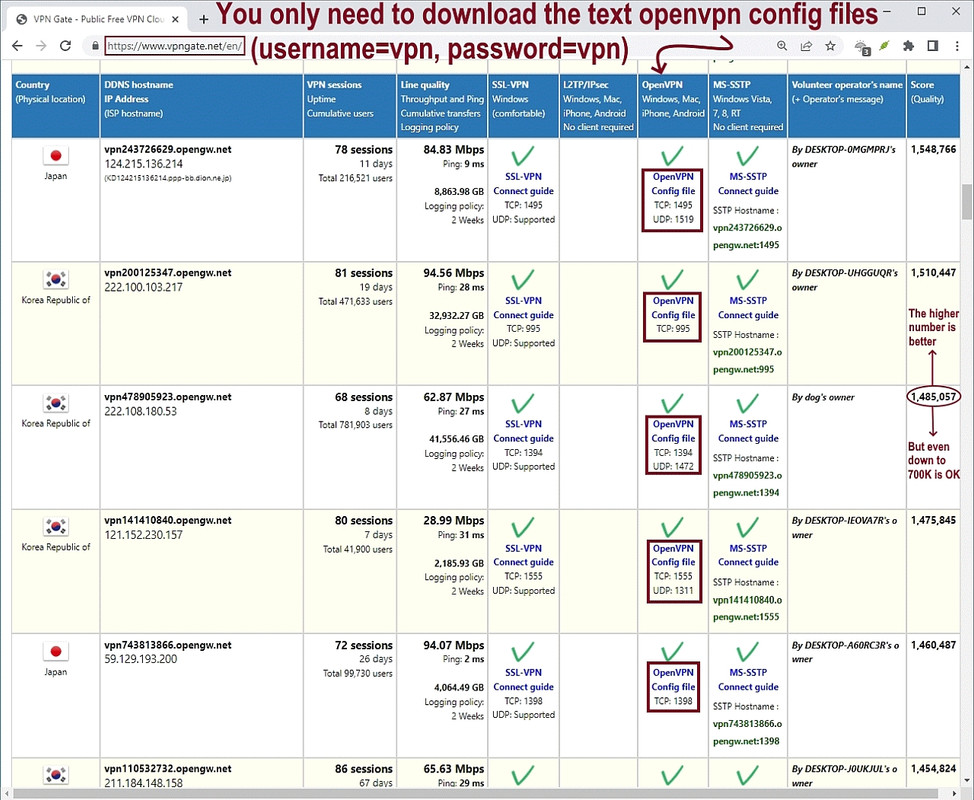
https://vpngate.net openvpn config files fail to connect.
The site is designed that way (to foil government censorship, they say).
But even with normal non-censorship-avoiding sites, openvpn configs fail.
It's the nature of free open vpns where there are thousands on the net.
Luckily if you run a dozen (or so) at a time, at least one will work while
the rest will lock up or fail (depending on the vpn server status); so in
the end, only either zero or one configuration file will work.
But notice this requires a *test* of "is it working yet?",
which requires batch scripting that I am not the best at.
So the biggest problem is that I'm terrible at batch scripting.
The next problem is to get the Task Scheduler to run that batch script.
But I set up all those task failures long ago, where probably I should try >> anew now that I have a better batch script which chooses the configs using >> set cmd=C:pathto\openvpn.exe
set dir=C:\users\whoami\vpn\
set file=vpngate_1.250.96.236_udp_1195.ovpn
REM %cmd% %dir%%file%
runas.exe /user:administrator /savecred "%cmd% %dir%%file%"
Knowing the setup for the task scheduler, do you have any suggestions
for how to run the batch file such that the openvpn.exe GUI has elevated
privileges when it tries to change the routing table with route.exe?
openvpn.exe doesn't have any GUI. It's a pure console program. Were you referring to the GUI of openvpn-gui.exe? FYI, openvpn-gui.exe has a
different set of command line usage and arguments.
Hmmmm.... while I don't doubt you (because I don't know), every time I've downloaded the openvpn client, it has defaulted to the GUI for ovpn files.
So you know things that I clearly am not aware of, even as I've been using the open source openvpn tools on Windows for, oh, I don't know, ten years.
(1) Go to
https://openvpn.net/community-downloads/
(2) Scroll down to the "Windows 64-bit MSI installer" whose URL is
<
https://swupdate.openvpn.org/community/releases/OpenVPN-2.6.12-I001-amd64.msi>
(3) Run the installer to put binaries into C:\programs\networking\openvpn
As far as I know, that defaults to the GUI when you doubleclick on an ovpn file, but of course I change that to default to the openvpn daemon instead
(and I have to change the daemon privileges to "Run as administrator").
But I have never gotten the Windows task scheduler to work with openvpn.
Do you think it's even possible given openvpn.exe has to itself be able to >> modify the route (which I presume it does by calling route.exe internally)?
It normally shouldn't be a problem as long as openvpn already have administrative rights, since by system default, a child process inherits the user account and the security access level of the parent process. This does not apply if the execution is (specifically) delegated to the desktop
process - which doesn't have administrative rights by default.
I readily and openly admit I don't fully understand that paragraph other
than to acknowledge if you install the openvpn msi installer above onto Windows, the default is the GUI which doesn't ask for elevated permissions
when it runs any of the thousands of free openvpn config files on the net.
C:\programs\networking\openvpn\bin\openvpn-gui.exe
However, if you run the openvpn.exe daemon from a batch file, as I do,
C:\programs\networking\openvpn\bin\openvpn.exe
then even with "Run as administrator" set on the properties form,
the openvpn daemon will not have the permissions needed to set the
routing table unless you run it as administrator (which I'm not logged
in as, even as the user is supposed to have administrator privileges).
Running that openvpn.exe daemon pops up the UAC, which is why I
use the "savecred" method (but if the task scheduler will work, I'm
all for it but it has to actually work with a batch file).
I'm looking at all my existing task-scheduler tasks to find one
which calls a batch file... because I generally just copy & modify.
OK. Found a batch file that I'm running via the task scheduler.
Win+R printer [return]
Which is a keyword of that same name (i.e., printer.exe) found in
HKLM\SOFTWARE\Microsoft\Windows\CurrentVersion\App Paths\printer.exe
Which defaults to executing a default shortcut C:\pathto\printer.lnk
Whose target is C:\Windows\System32\schtasks.exe /run /TN "task printer"
Where Win+R taskschd.msc shows that task in the "Task Scheduler Library"
Where the "General" tab checkbox is set to "Run with highest privileges"
Where the "Actions" tab is set to "Start a program" (with options)
And where the program is set %comspec% and where arguments are set to
/c start "" C:\pathto\printer.bat where that printer.bat file is
@echo off
REM printer.bat
REM if the print spooler is off, this batch file will turn it back on
REM if the print spooler is running, this batch file will turn it off
REM if you don't enter a valid y/n response, nothing will be changed
call sc query | findstr /i spooler
if %ERRORLEVEL% == 0 goto :Stopit?
:Startit?
set /p input=Spooler is not running. Start it (y/n)?"
if %input%==y net start spooler
goto :Ciao
:Stopit?
set /p input=Spooler is running. Stop it (y/n)?"
if %input%==y net stop spooler
:Ciao
exit 0
As I said before, I'm not a good batch programmer but I can usually figure
out what a similar program does so I may be able to use this batch file
example (which is already working well) to connect without the UAC prompt.
Looking around for that batch file example using the task scheduler,
I found another batch file that I often use to toggle the gateway.
This is a network toggle that I got long ago from this newsgroup,
which I think was mostly written by Zaidy and which I modified.
Win+R toggle [return]
Which is a keyword of that same name (i.e., toggle.exe) found in
HKLM\SOFTWARE\Microsoft\Windows\CurrentVersion\App Paths\toggle.exe
Which defaults to executing a default shortcut C:\pathto\toggle.lnk
Whose target is C:\Windows\System32\schtasks.exe /run /TN "task toggle"
Where Win+R taskschd.msc shows that task in the "Task Scheduler Library"
Where the "General" tab checkbox is set to "Run with highest privileges"
Where the "Actions" tab is set to "Start a program" (with options)
And where the program is set %comspec% and where arguments are set to
%comspec% /c start "" c:\pathto\toggle.bat where that file contains
@echo off
REM toggle.bat
REM if the gateway is set, this batch file will turn it off
REM if the gateway is not set, this batch file will set it back
REM Windows connectivity icons will show the status accordingly.
REM If VPN was on when the gateway is removed, nothing happens
REM unless the VPN drops, and then you are without a gateway
REM which protects your IP address from leaking when VPNs fail.
set gateway=192.168.0.1
set "address="
for /f "tokens=2,3 delims={,}" %%a in ('"WMIC NICConfig where IPEnabled="True" get DefaultIPGateway /value | find "I" "') do if not defined address set address=%%~a
if "%address%"=="%gateway%" ( %comspec% /c %windir%\system32\route.exe delete 0.0.0.0 %gateway%) else ( %comspec% /c %windir%\system32\route.exe add 0.0.0.0 mask 0.0.0.0 %gateway%)
exit
Given I suck at writing batch scripts, but I can usually modify existing
batch scripts to do the job I need to do (unless clever tricks are needed),
my problem task now is to first figure out how to tell if a VPN
configuration file has actually worked or not.
To be clear, the problem is that the batch file has to not only select a
random vpn config file in a directory of thousands (which isn't that hard),
but it has to also run a few of those configuration files until one of them works to connect to a free public VPN (which I don't know how to test for
from within a batch script although "curl ifconfig.me" will tell me that
the IP address is different from my ISP's provided static IP address.
As an additional aside, I normally kill the gateway moments after I
establish a VPN connection (which protects the IP address if the VPN
connection suddenly drops - which it does all the time).
For that, I can run "Win+R off" to remove the 192.168.0.1 gateway; or,
I can use that on/off network toggle (which I think Zaidy had written).
In summary, the main "trick" that I need help on is how to tell for sure
that I've connected to a VPN server - where there are two ways that I know
of offhand, one of which is the VPN log file will say this as the last line
"Initialization Sequence Completed"
The other way is that a curl command will show a different IP address.
Win+R whatismyipaddress [return]
Which is a keyword of that same name (i.e., whatismyipaddress.exe) in
HKLM\SOFTWARE\Microsoft\Windows\CurrentVersion\App Paths\whatismyipaddress.exe
Which executes the shortcut C:\pathto\whatismyipaddress.lnk
Whose target is %comspec% /k echo "C:\pathto\whatismyipaddress.lnk %myipaddress%" & %Windir%\System32\curl.exe ifconfig.me
This will report the known static ISP IP address plus the current IP
address, where I don't know yet how to compare them in a batch file.
Hence, the two "tricks" of the trade I would like to ask for help on how to
do are (a) how do I compare two IP addresses, and (b) how do I test whether
or not the VPN connection has been established?
Any ideas from anyone out there on those two Windows networking tricks?
--- SoupGate-Win32 v1.05
* Origin: fsxNet Usenet Gateway (21:1/5)